
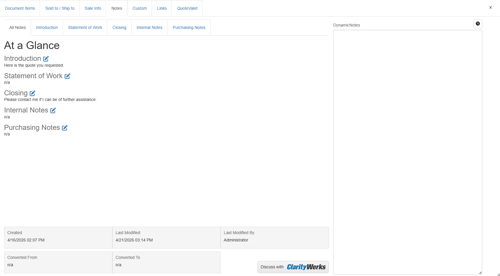
Under the Notes tab, you can perform the following tasks:
-
Enter introductory and closing statements to your customer, which will appear on the printed quote
-
Enter a Statement of Work that can be printed on the quote
-
Enter notes that will appear only on the purchase order
-
Enter internal notes about the quote, which will appear only on this tab
-
Set defaults for introductory and closing text
NOTE: These fields can contain up to 32,000 characters each.
You can set the default text that appears in these fields when creating new quotes by setting defaults in the Setup-> My Preferences-> Notes tab. These are per user settings. The F2 Lookup feature works with these fields as well, allowing you to create a list of common phrases and paragraphs used for notes that you can paste into this field.
Macro expressions can also be used in these fields. See Macro Expressions below for more information.
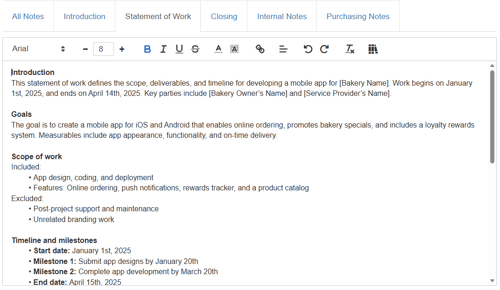
The notes fields in QuoteWerks Web have Rich Text enabled, meaning you can format the text the way you want it to be displayed on printed output directly from the notes tab.
Introduction
The Introduction text is printed immediately before the body of the quote in our sample layouts. If you’re designing your own, you can put it wherever you want.
An example of introductory text would be something like:
“Thank you for the opportunity to provide this quote. Per your request, I’ve also included pricing on the options you asked for.”
You can set the default text that appears in this field when creating new quotes by editing the default settings in the My Preferences Notes tab.
NOTE: This default text is user specific; only you will have it available when creating quotes.
Macro expressions can also be used in this field. See Macro Expressions below for more information.
Statement of Work
The Statement of Work field can be used to input information about the work to be completed. This information can be added to quote layouts in the Layout Manager.
Macro expressions can also be used in this field. See Macro Expressions below for more information.
Closing
The Closing text is printed after the body of the quote in our sample layouts (if you’re designing your own, you can put it wherever you want See Printing and Customizing Document Layouts for more information).
An example of closing text would be something like:
“If you have any questions, please let me know. I’ll be out of the office for the next two days, but you can reach me on my cell phone at (407) 248-1481. Thank you again for the opportunity to bid on your project.”
You can set the default text that appears in this field when creating new quotes by editing the default settings in the My Preferences Notes tab.
Macro expressions can also be used in this field. See Macro Expressions below for more information.
Purchasing Notes
These purchase-order notes are printed on purchase-order documents in place of the introduction text. In this text box, enter notes intended for the sales rep of the vendor you’re placing the order with.
You can set the default text that appears in this field when creating new quotes by editing the default settings in the My Preferences Notes tab.
Macro expressions can also be used in this field. See Macro Expressions below for more information.
Internal Notes
This field allows you to track internal office notes about the quote. It can be used to note directions to the customer site, list the people you’re scheduling to service the quote, etc.
You can set the default text that appears in this field when creating new quotes by editing the default settings in the My Preferences Notes tab.
NOTE: Internal notes will not print on the quote.
Dynamic Notes
The Dynamic Notes field enables users to insert a time stamp (user, date, time) on the Notes tab so users are aware who posted which note and when. The  [Insert Date/Time] button will add the stamp and users can begin typing underneath it. Each time the [Insert Date/Time] button is used, it will automatically insert the new stamp at the top of the Dynamic Notes field.
Created, Last Modified, Last Modified By
These fields at the bottom of the Notes tab will display the:
-
Date and time the quote was created (Created)
-
Most recent date and time the document was modified (Last Modified)
-
Last QuoteWerks user to make a change to the document (Last Modified By)
Converted From and Converted To
Converted From will display the document number, the user, and the date the document was converted from a quote to an order or invoice.
Converted To will display the document number, the user, and the date the document was converted to an order or invoice.
Macro Expressions
There are several macro expressions, such as "&DH_CUSTOMTEXT01", that QuoteWerks can evaluate and return the associated value for. These macros can be used in the introduction and closing text.
The “CUSTOMTEXTXX” macros will return the respective value from the CustomText fields under the Custom tab of the Quote Workbook. The other macros are intuitive by name.
For example, if your closing text was, “Your payment terms are &DH_TERMS”, it would print as, “Your payment terms are NET 15,” if the information in the Terms field under the Sale Info tab was “NET 15.”
For a complete list of macros, see Cover Page, Literature, and Microsoft Word Template Document Macros.
Rich Text
Each field on the notes tab allows for Rich Text formatting. This includes the ability to format text, alignment, hyperlinks and more.
In order to use Rich Text you will first need to Enable Rich Text by navigating to Setup -> Options -> Misc and selecting Enable Rich Text.
NOTE: To have rich text display on printed outputs you must reference the rich text macro fields which will correspond to their non rich text ones. For example, to have rich text print for CustomMemo01 you would use a macro with the postfix of "Rich Text." The macro you would insert into your layouts to display rich text for CustomMemo01 would be CustomMemo01RichText. If you use just CustomMemo01 the rich text formatting will not display on the printed outputs. Additionally, rich text must be enabled on the Layout by toggling the rich text box.
For more information on using Rich Text see the Rich Text help article.