
QuoteWerks native product databases are pricelists that you create and store the lists of products and services that you will be quoting. You can have an unlimited number of these product databases, allowing you to easily manage your products and vendors.
You might ask, “Why would I set up more than one product database”? If you purchase products from several vendors you will want to store each vendor’s product information in a separate database. Storing each vendor’s products in a separate database makes it easier to manage the importing and updating of that vendor’s data. In addition, because many vendors carry the same items, with the same manufacturer part numbers, you must have them in separate database to avoid duplicate part numbers. That is why QuoteWerks uses the manufacturer part number field to uniquely identify a product inside a product database. If the same manufacturer part number is in the database for five different vendors, QuoteWerks would not know which one to use The only way to organize your products so that you only have 1 unique part number for multiple vendors is to have a product database for each vendor. This way you can easily find the product you are looking for by a unique part number in the appropriate vendor database for the specified manufacturer part number.
Lastly, this is critical if you want to use QuoteWerks’ price refreshing, price comparison, required items, substitute items, optional items and purchase order functions. QuoteWerks must be able to uniquely identify an item by its manufacturer part number and vendor for these features to work.
The QuoteWerks Product Import Wizard discussed in Importing Products allows you to import your vendor’s product and service information into a QuoteWerks native product database. It is required that you setup a product database for each vendor that you purchase products and services from. Please note, depending upon the network operating system, the initial QuoteWerks start up time may be lengthened by the number of product databases that you setup.
See the following topics for more information:
- Creating Native Product Sources
- Removing the Link to Any Existing Product Data Source
- Renaming an Existing Product Data Source
Creating Native Product Sources
In the MS SQL backend of QuoteWerks, the table name is products_myproducts_products, found in the QuoteWerks database. When you create additional native product sources you will be given the option to specify the physical database file or table name of the product source, and a more descriptive name (most often the vendor name whose products you will store in this database) that will be used to refer to the database from within QuoteWerks. The descriptive names of the native product sources will be displayed when looking up products on the Product Lookup window. When products are added to the quote from this product source, this descriptive name will be placed in the Vendor column for the product.
NOTE: The descriptive names are used in conjunction with the manufacturer part number when refreshing prices. See Price Comparison and Refreshing Features for more details.
Step 1: Go to the Products -> Setup Product Data Sources menu, then select the New ( ) button on the Product Data Source Setup window.
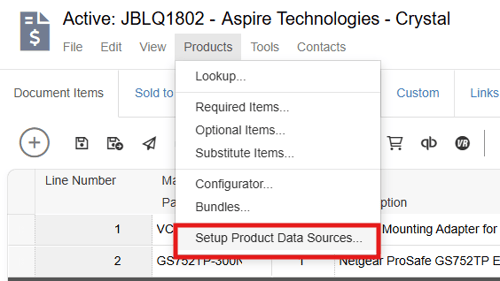
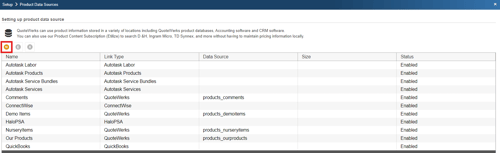
NOTE: The creation of new Product Data Sources can be restricted per user with the “CannotCreateProductDataSource” Misc. Access Right.
Step 2: To create a native product database select QuoteWerks from the “Select Database Type” drop down menu. By default the database type will be QuoteWerks.
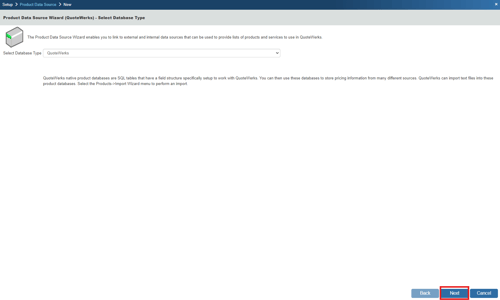
Click on the [Next] button to move to the next step.
Step 3: By default, the “Create new QuoteWerks native database” option will be selected:
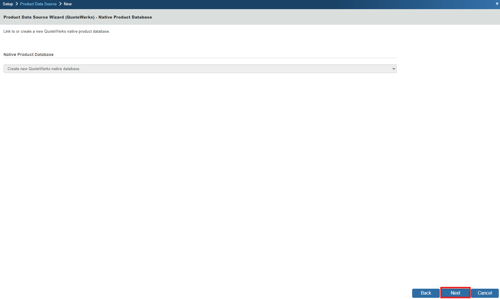
Because we are creating a new product database we will leave the default selection and click on the [Next] button to move to the next step. The “Link to existing QuoteWerks native database” will be covered later in this chapter.
Step 4: If the ‘Individual Product Data Source level security’ has been enabled, the Set Access Rights step will appear next:
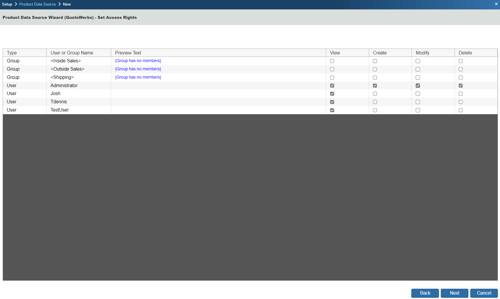
Here you can control the level of access each User or Group has to this Product Data Source.
Step 5: Here you can choose various options for the product database.
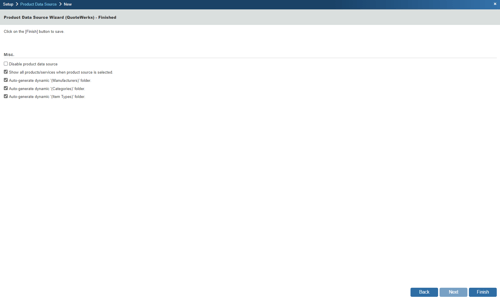
Show all products/services when product source is selected
Choose this option to display all of the products and services in the database when you select this product database from the Product Lookup window. If you have more than 5,000 items in your product database, it is recommended that you do not select this option.
Auto-generate dynamic ‘(Manufacturers)’ folder
In native product databases, you can choose to have QuoteWerks auto-generate a unique list of of the manufactures found in the product database.
Click on the [Finish] to move forward and name your product database.
Auto-generate dynamic ‘(Categories)’ folder
In native product databases, you can choose to have QuoteWerks auto-generate a unique list of of the categories found in the product database.
Click on the [Finish] to move forward and name your product database.
Auto-generate dynamic ‘(Item Types)’ folder
In native product databases, you can choose to have QuoteWerks auto-generate a unique list of of the item types found in the product database.
Click on the [Finish] to move forward and name your product database.
Disable product data source
Select this option if you want to disable this product data source. If you are no longer using a database, but you don’t want to delete it you can use this setting. It won’t show up in your product lookup window but you can always reactivate it later if you needed it. This is especially useful if you are integrating with an external 3rd party database. If there is a problem with the database, you can disable it, saving all your credential settings, etc while you correct the issue and during this process, the users will not be receiving error messages.
Step 6: When products from this product database are added to the quote, the name that you have given this product database will be placed in the vendor column of the quote for the product.
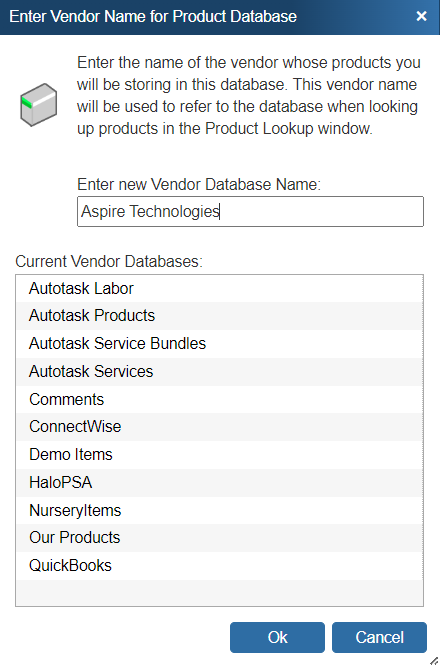
Step 7: Enter the database file name you would like to use to store this vendors products. The database name will be the name of the database file that will be saved to the QuoteWerks directory. Example; vendor name “Aspire Technologies” will become “Aspire Technologies.mdb” in the QuoteWerks directory:
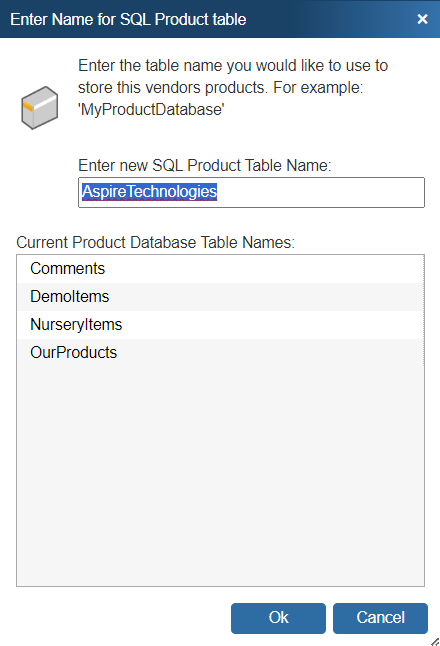
This step will prompt you to “Enter a Name for SQL Product table.” This will be the name of the Vendor’s product list in the QuoteWerks SQL database.
Click on [Ok] complete the QuoteWerks Native Product Database setup.
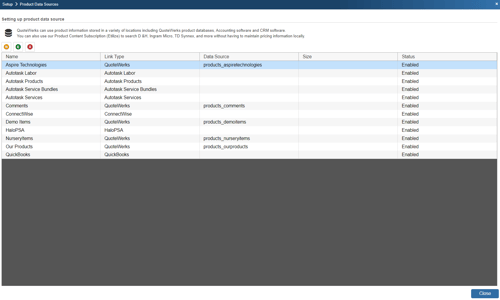
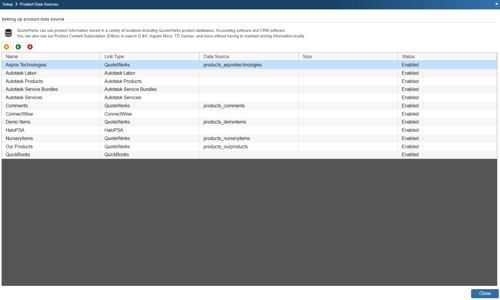
The newly created native product database and the location will appear in the database list on the Product Data Source Setup window:
Removing the Link to Any Existing Product Data Source
Step 1: Navigate to Setup -> Product Sources.
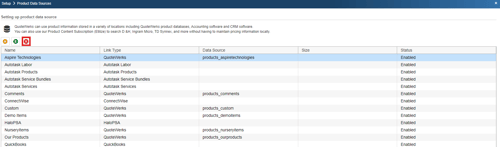
Select the database that you wish to unlink and click on the  [Remove] button. Unlinking a database just removes it from your list of choices when searching for products. It does not delete the database file. In a network environment removing a link will remove that link for all the users sharing the network installation.
NOTE: The deletion of new Product Data Sources can be restricted per user with the “CannotDeleteProductDataSource” Misc. Access Right.
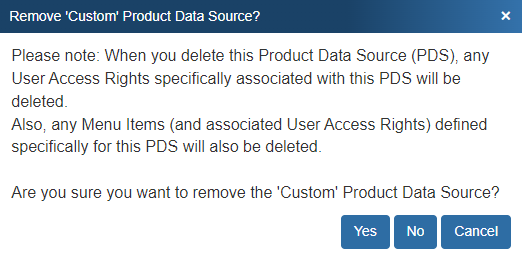
Step 2: Once you click on the [Remove] button you will be prompted to confirm your decision to remove the product database link:
Step 3: In addition to removing the link, QuoteWerks will prompt you and ask if you want to delete the physical product database:
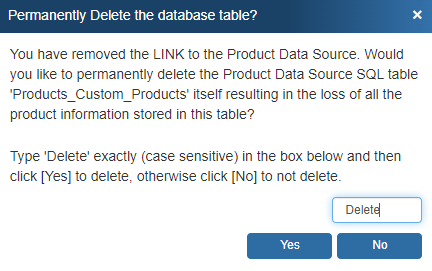
Simply type in the word “Delete” and click [Yes] to delete the database. Otherwise click on [No].
NOTE: When a user removes a Product Data Source, the removal will be logged in the event.log file.
Renaming an Existing Product Data Source
The main reason why you would use this feature would be if you misspelled the Vendor’s name or if the Vendor’s name has changed.
Another instance where you may need to rename an existing product database is if the database has the same name as another vendor in your product list. This may occur if you have received database file from another QuoteWerks user.
NOTE: You can rename any of the product data source links through the product data source setup window.
Step 1: Go to the Products -> Setup Product Sources menu. Select the database that you wish to rename and click on the Edit ( ) button:
Step 2: You will then need to click on the [Next] button two times to skip to the “Enter the name for product data source” window to type in the new name for this product source:
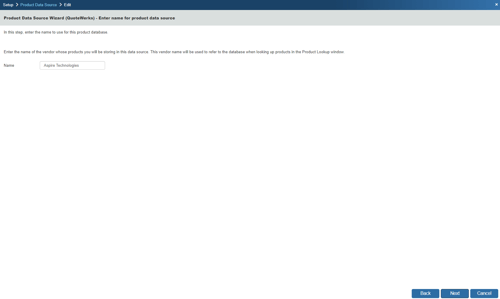
Step 3: Click on the [Next] button and then the [Finish] button on the following window.
NOTE: This will only rename the vendor name associated with the product database, and not its physical database file or table name.