
To re-host the QuoteWerks Desktop (with Access or SQL backend) to the QuoteWerks Database Hosting Service follow the steps below.
IMPORTANT: These instructions apply only if you are currently using QuoteWerks Desktop and are migrating or upgrading to QuoteWerks Web.
NOTE: The following steps will only apply to you if you have signed up with QuoteWerks for the QuoteWerks Database Hosting Service. There are credentials that a QuoteWerks Representative will send you in order to set this up properly. If you have not received these credentials, contact your QuoteWerks Account Manager before proceeding.
TIP: Click here to review the video on how to rehost to the QuoteWerks Database Hosting service.
Step 1: Open QuoteWerks Desktop and click the Utilities -> Rehost Backend menu. The Welcome window will appear:
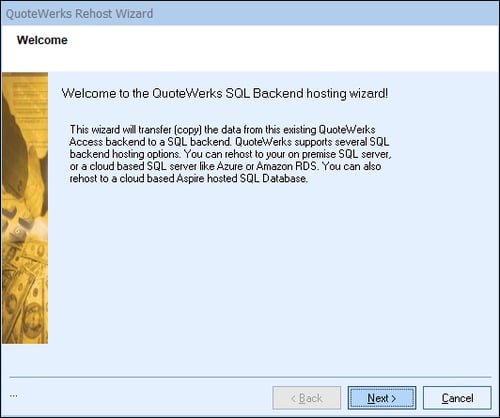
Click on the [Next] button to start.
IMPORTANT: The Utilities -> Rehost Backend menu may not be enabled. For it to be enabled, the following three conditions must be met:
-
QuoteWerks must currently be using an Access or SQL backend.
-
A Corporate Edition License Key must be entered in this installation.
-
The user who’s logged in to QuoteWerks must have QuoteWerks Master Rights.
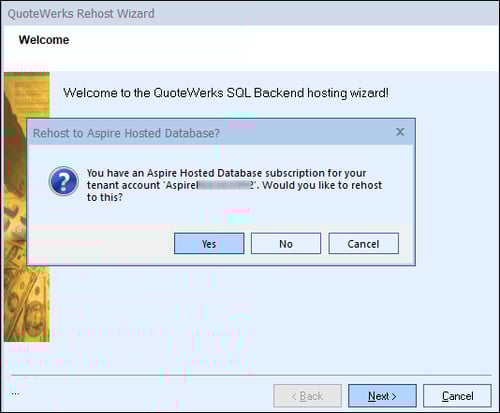
Step 2: On this window you will be prompted to use the QuoteWerks Database Hosting, click "Yes".
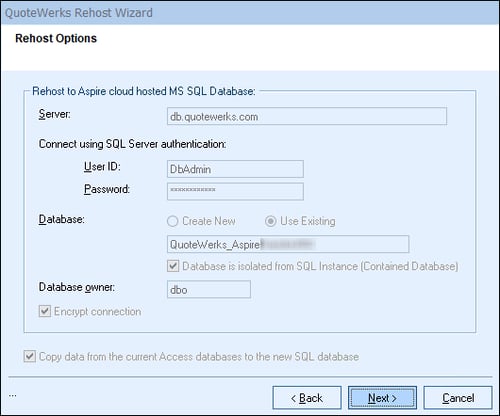
Step 3: On this window, your QuoteWerks Database Hosting credentials will automatically populate. You should not have to change any settings or fill anything in on this window. Simply click on the [Next] button. If those fields are still blank, your Database Hosting subscription is not active and you will need to contact the QuoteWerks Sales team.
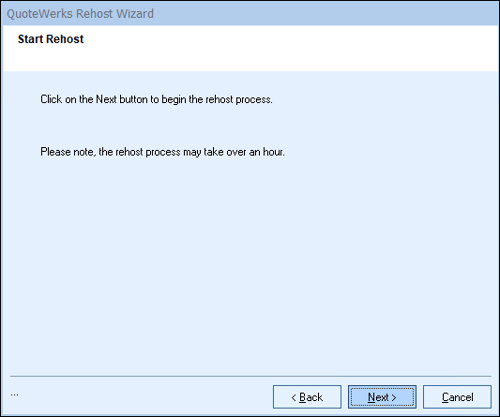
Step 4: On this next window, simply click on the [Next] button to start the re-host process.
IMPORTANT: Once you start the Rehost process, you will need to wait until it completes before using QuoteWerks. Most companies will be able to rehost in just a few minutes, but if you have a large database, this process can take up to multiple hours. Be sure you have allotted enough time for it to complete.
Step 5: A progress monitor displays during the re-hosting process. This step may take anywhere from a few minutes to a few hours, depending on how much data your QuoteWerks installation contains. Please be patient.
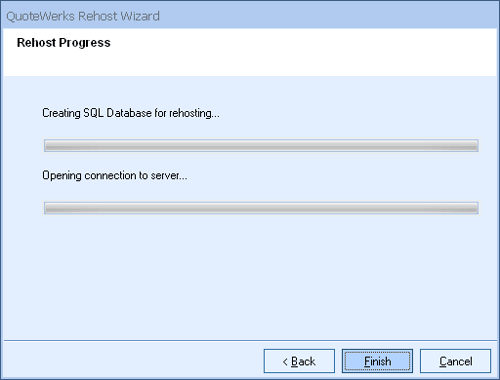
Step 6: On the final window a message will display letting you know the process has completed and that you will need to close QuoteWerks and restart for the changes to take effect. Click on the [Close] button to finish the rehost wizard.
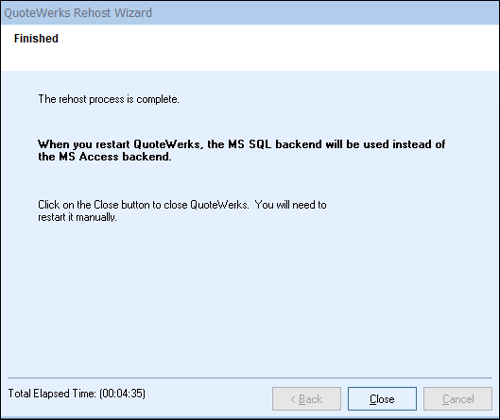
Step 7: After you close QuoteWerks and restart, continue to the final steps of setting up QuoteWerks Web.