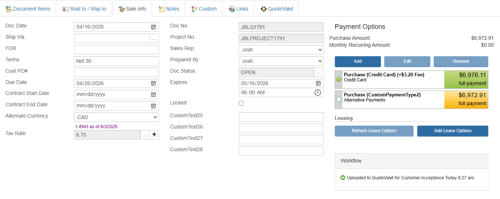
The Sale Info tab stores additional information important to the overall quote. Here, you can specify a document status, shipping terms, payment terms, customer PO number, invoice date due, tax rate, alternate currency, sales rep, prepared-by user, and more.
The Sale Info tab also allows you to determine which Payment Options are displayed to customers. This includes Lease Payment Options.
Doc Date
The Doc Date field pre-populates with the date the quote was created. You can change the value of this field manually by typing in a date. You can also click on the calendar button to display a calendar to select a date.
Choose a date from the calendar, then click on the [Select] button.
Ship Via
The Ship Via field stores the quote’s shipping method. Double-click within the field, press the [F2] key on your keyboard, or click  to display the F2 Lookup field options window.
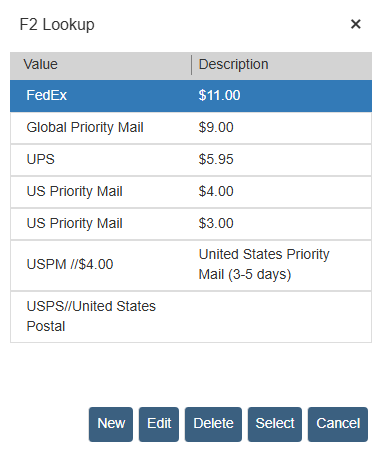
You can add, edit, and delete shipping options from this window. When adding or editing shipping methods, you can use two forward slashes (“//”) to separate the method from its description, as shown in the screen shot above.
Choose the shipping method you wish to set for the quote and click on the [Select] button. Your selection will appear in the Ship Via field.
FOB
This field contains the freight-on-board destination. Double-click within the field or press the [F2] key on your keyboard to display the F2 Lookup field options window.
Terms
This field stores the payment terms for the quote. Double-click within the field or press the [F2] key on your keyboard to display the F2 Lookup field options window.
Cust PO #
This field allows you to type in the customer purchase-order number for this quote/order, and will allow up to 20 characters.
Due Date
The Due Date field pre-populates based on the Doc Due Date setting on the Documents tab under the Setup -> Options menu.
To edit the Due Date field, double-click within the field or press the [F2] key on your keyboard to display a calendar. Choose a date and click on the [Select] button.
NOTE: Advanced users can use the Settings Manager to create or set SystemSettings\Defaults\DocDueDate={+15} to default the Due Date field under the Sale Info tab to, for example, 15 days from today.
Contract Start and End Dates
The Contract Start and End Date fields are used to specify dates of recurring items on the Document Items tab. When items are marked as recurring, users have the option to set dates either by using Contract Dates from the Sale Info tab or to specify dates for each item. The advantage of using the contract dates is if you have multiple items that are recurring on the document, instead of having to individually set dates for each item, you can set them all to use the Contract Dates at one time through the Line Attributes.
Tax Rate
See Using Sales Tax in a Quote (USA) or Using Sales Tax in a Quote (Canada) for detailed information on this field.
Doc No.
When you save a document, a document number will be assigned and will appear in this field. This number can’t be changed from this tab; it’s here for display purposes only. If the document is unsaved, the word “UNSAVED” will appear in this field to remind you to save the document.
The document number defaults to QuoteWerks’ automatic numbering scheme. This default document number can be modified after it has been generated, and can contain alphanumeric characters. See Installation tab options for more details on the document number.
Sales Rep.
The Sales Rep. field stores the sales rep for the quote. By default, the Sales Rep. field will be set to the logged-in user.
To change the Sales Rep. field, click the drop-down box and select the new sales rep to be associated with the quote.
TIP: When you click on the drop-down menu, if you then click on a letter of a user name on your keyboard (such as M) QuoteWerks will highlight the first Sales Rep name that begins with the letter clicked on your keyboard. This is a nice shortcut to quickly locate the contact you would like to set as the Sales Rep.
Prepared By
This field is used to identify the person preparing the quote for a sales rep. This person will be CCed on all QuoteValet notifications that go to the sales rep, so the preparer can follow up on any communications if the rep is out of the office or otherwise unable to respond.
TIP: When you click on the drop-down menu, if you then click on a letter of a user name on your keyboard (such as M) QuoteWerks will highlight the first Sales Rep name that begins with the letter clicked on your keyboard. This is a nice shortcut to quickly locate the contact you would like to set as the Sales Rep.
Doc Status
The Doc Status field is different from the document type, which identifies the document as a(n) QUOTE, ORDER, or INVOICE. The document type will appear in the upper-right-hand corner of the Document Items tab in the Quote Workbook. You can set the default status of new documents on the Installation tab under the Setup -> Options menu.
The Doc Status for new quotes will default to "Open". To change this Doc Status field, click the  button and select from the list of options.
You’ll then be able to search for quotes based on the value in the Doc Status field from the File -> Open menu, and also in management reports. You can also change the Doc Status field from the Save window when saving the document.
Expires
The Expires field pre-populates based on the Expires date and time settings on the Documents tab under the Setup -> Options menu. This field is particularly useful for QuoteValet users. If your customer views a quote on QuoteValet after it has expired, they will see a message stating that the Quote is expired and there will be a link for them to click to request an updated quote. Your customer will still be able to view the expired quote, but will not be able to accept it.
To edit the Expires date field, double-click within the field or press the [F2] key on your keyboard to display a calendar. Choose a date, then click on the [Select] button. You can add a time or, if you do not specify one, the time will default to 11:59 PM.
Alternate Currency
To change the document’s alternate currency, click the drop-down box and select the alternate currency that you’d like to display in the quote. To add, edit, or delete an alternate-currency entry, select the Setup -> Exchange Rate Maintenance menu.
Locked
If you’d like to protect the document from changes, check the Locked box. Once a document has been locked, you must unlock it before you can make changes.
NOTE: Users with Master Rights can always unlock a document. Users that do not have Master Rights can copy the text out of the cells to the Windows Clipboard.
The user that the quote belongs to can make changes to a locked document after unchecking the Locked box, however, there is a security access right called CannotUnlockDocuments (found under the Access tab of each user’s definition under the Setup -> Users menu) that can prevent the owner of the quote from unlocking it.
CustomText25-28
In addition to the CustomText fields available on the Custom Tab, these four fields can be used for additional information to display in the document.
Payment Options
The Sale Info tab also includes Payment Options for the quote or proposal. Setting up different payment options is very useful for anyone who accepts multiple payment types for customers. You can set default payments types for each document or customize the payment options on a per quote basis. Current payment options include: Credit Card, Check, ECheck (ACH), PayPal, Wire Transfer and two custom payment options.
These payment options are specifically useful for QuoteValet users as your customers can select the payment method that's best for them, and after accepting the quote, will be brought to the payment screen based on their selection.
Click on the Sale Info tab and locate the Payment Options window on the right-hand side of the Sale Info tab.
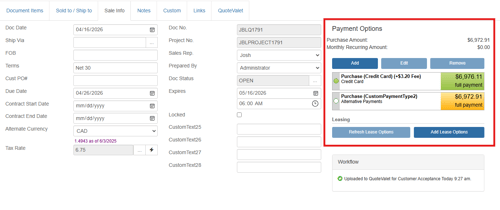
TIP: For information on setting default Payment Options, view the Payments tab in the Setup-> Options menu.
Adding a New Payment Option
The payment options supported in QuoteWerks include 7 different options. Users can create a payment option of Credit Card, Check, ECheck (ACH), PayPal, Wire Transfer, and two custom payment options. View the Lease Payments topic for information on using Lease Payment options.
1. To create a non-lease payment option, click on the [Add] button.
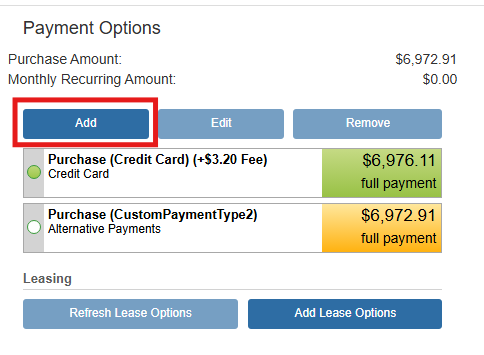
2. On the drop-down menu that appears, click the payment type you would like to add.
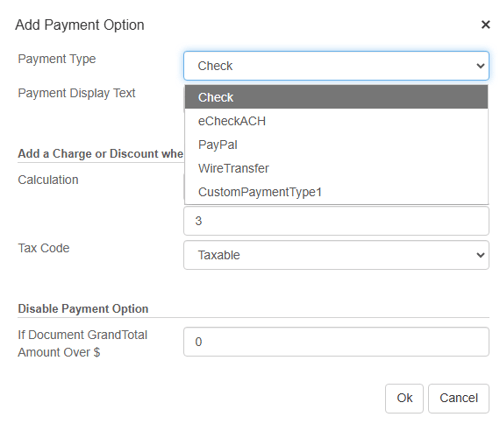
3.The Payment Display Text will display the text about the payment. You can customize this text to fit the description of the payment option or provide more information if you want.
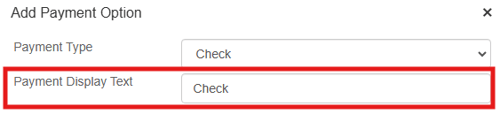
4. Next, if you want to add a percent charge, percent discount, or a fixed charge for using the selected payment type you can set that up under the Add a Charge or Discount when this payment option is selected. For example, if it is legal in your region to charge a fee for using a credit card, you could set the calculation field to "PercentCharge" and then set it to "3". When this payment option is selected, it will automatically add a 3% surcharge to the payment total.
IMPORTANT: It is illegal in some states (such as Florida) and countries to charge the customer a surcharge for using a credit card. Please consult with your legal adviser before utilizing this feature.
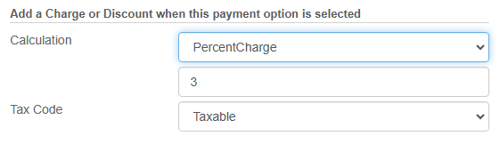
5. Users also have the option to disable a payment option if the Document total is over a certain dollar amount. Simply type in the value where you wouldn't want this payment option to be available. If the Grand Total of the document exceeds what is set here, this payment option would not be available to use on this quote.

6. Click [Ok] to complete the setup.
7. The new payment option will be displayed under Payment Options.
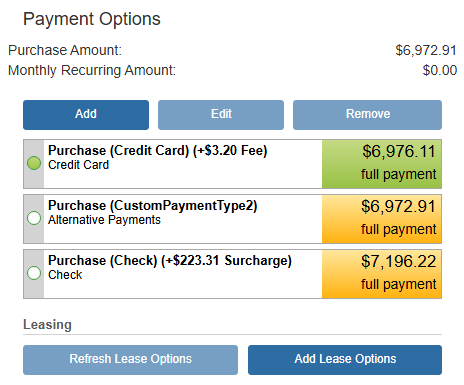
8. Repeat for the other payment options (if applicable). Once you have created your payment options, simply double-click to pre-select an option for the customer. You'll see the selection highlighted in green.
Visit the Lease Payment Options section of this manual to create a lease payment for your quote.
NOTE: Advanced users can limit which payment options are available to add to documents in QuoteValet. This is done in the Settings Manager in using this setting:
SystemSettings\System\PaymentTypeListOverride =Credit Card,Check,eCheckACH,PayPal,WireTransfer,CustomPaymentType1,CustomPaymentType2
Users simply need to remove the payment options they do not want to be available.
Payment Options for QuoteValet
NOTE: The following information will only apply to users who are using QuoteValet. Users will also need to have setup their payment gateway in QuoteValet, set a deposit on the document, and set a payment option to collect payments via QuoteValet.
Once a payment option or multiple options (including leasing options) have been added to a quote, the customer will be able to select their payment option on QuoteValet under the Payment Options section of the quote.
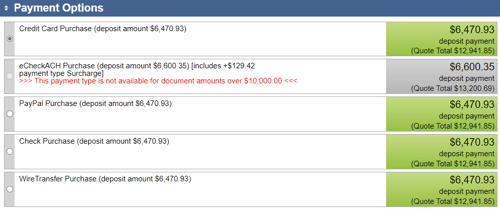
After the payment option has been selected and the quote has been accepted, the customer will be able to access the payment screen with their payment option already selected. Here they can enter in their payment information.
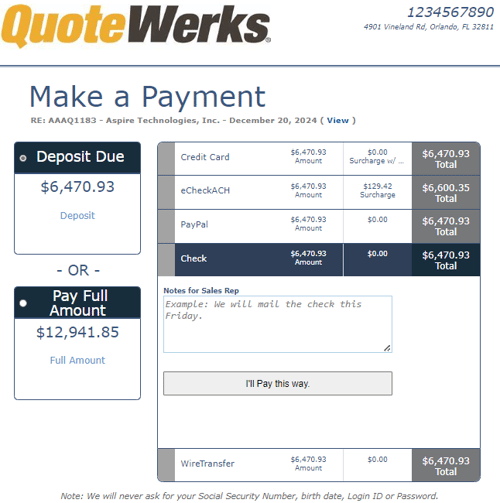
If they need to change their payment option, they can simply select another available payment option.
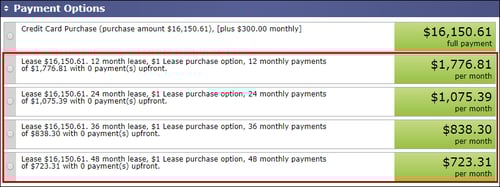
Lease Payment Options
IMPORTANT: In order to add a Lease Payment Option, you will need to setup your leasing provider in QuoteWerks in the Leasing tab. If you are using GreatAmerica and have a Real-time module, you will setup the Real-time Leasing Integration in the Real-time setup window.
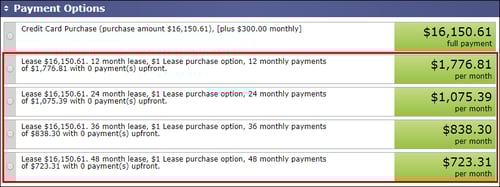
Lease Payment Options provides users with an easy way to calculate different leasing options and present them to the customer on the quote such as 12 months, 24 months, 12 months with $1 buyout, etc. All leasing companies are supported, they simply need to be added to QuoteWerks. See the Leasing tab in the Options menu for information on setting up a default leasing company.
Purchase Amount
The Purchase Amount displays the document total. This includes all line items on the document, tax, and shipping costs.
Monthly Recurring Amount
The Monthly Recurring Amount displays the total monthly payments of any items on the Document Items tab that are setup as monthly recurring. Any items that are recurring weekly, quarterly, or annually will not be included in this amount.
Add Lease Payment Options
1. To add a lease payment option to your quote, click on the [Add Lease Payment Options] button. You will need to have already created the quote with a currency value in order to add a leasing payment option as you cannot calculate a lease payment on $0.
2. Select your leasing provider from the drop-down list.
3. Select your rate card for that specified provider from the drop-down menu.
4. Choose whether or not to include the sales tax in the lease.
5. Choose whether to include the monthly recurring in the lease payment
IMPORTANT: With this option selected, any monthly recurring items on the DocumentItems tab will be bundled into the monthly lease total providing the client with a single monthly payment that includes all monthly recurring items from the document.
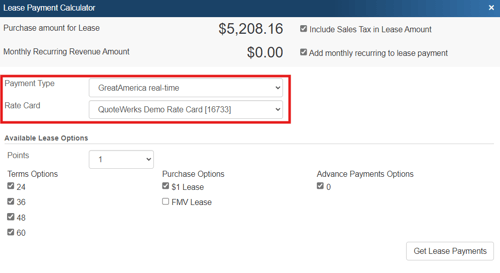
6. Next, select your lease options. Select points (additional points to add), term options (length of lease), purchase options (at least one of these purchase options is REQUIRED to calculate the lease payment), and the advanced payment options.
7. After you have made your selections, click on the [Get Lease Payments] button and your payment options will appear with check boxes next to them.
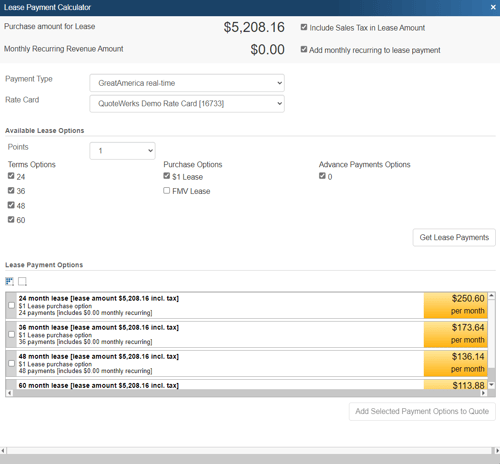
8. Select your payment option(s) and click [Add Selected Payment Options to Quote] to add the selected payment option(s) to your open QuoteWerks document. Your leasing options will now be available on the Payment Options window and you can select a default one by double-clicking on the payment option.
IMPORTANT: In order for your lease payment option to be displayed on the quote, ensure you have selected a QuoteWerks layout designed for the leasing calculations or you have customized your layout to include these types of payments by adding the &PaymentOptions or &PaymentOptions_IndicateSelected macro to the layout.
NOTE: If any item is set as weekly, quarterly, or annually recurring in QuoteWerks as a line attribute, that item or items will not be included in the leasing calculation, but will still count towards the total of the document on the PDF or QuoteValet quote. If the item is set as monthly recurring, and the "Include in monthly recurring in lease payment" checkbox is selected, it will be bundled into the monthly lease calculation. If this checkbox is not set, it will count towards the document total the same way as the weekly, quarterly, and annual recurring options on the document.
Refresh Lease Payment Options
Any time the rate cards are updated in QuoteWerks, you can click on the [Refresh Lease Options] button to refresh your available options with the updated pricing on that quote. This will also work if you are using the Real-time integration with GreatAmerica.
Change Lease Payment Options
To change the lease payment options on your quote, click on [Change Lease Payment Options]. This option will allow you to adjust the leasing payment options that will be displayed for your customer.
Payment Options for QuoteValet
When a quote with lease payment options, credit card, and/or other payment options are listed in the Payment Options on the Sale Info tab, the customer will be able to select their payment option on QuoteValet.