
The Sold to/ Ship to tab displays the current contact for the document. Users can manually type the contact into the fields or can search for a contact to pull into QuoteWerks Web by clicking on the magnifying glass icon.
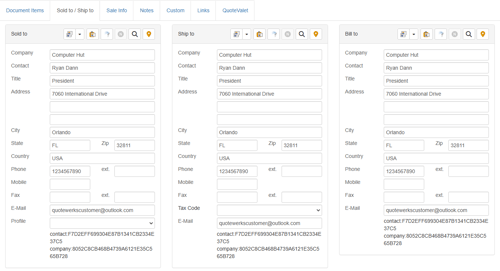
This tab contains Sold to, Ship to, and Bill to quote information. This information can be retrieved from your contact management software.
NOTE: If you don’t have a need for the Bill to fields, you can set them to be hidden under Setup -> Options menu > Installation tab.
Searching for a Contact in your Contact Manager
Clicking the  icon will allow you to search your contact manager for a contact.
Copying Contact Information between Sections
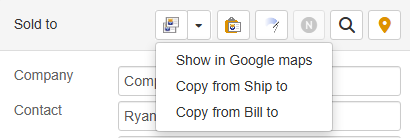
Clicking the  icon will enable you to copy contact information from one of the other sections.
Show in Google Maps
Clicking the icon also enables you to open the address in Google Maps.
Clearing Contact Fields
Clicking the  icon will Clear Contact Fields and Links to CRM.
Paste From Clipboard
Clicking the  icon will paste company, contact, and address information that has been copied to the clipboard into the appropriate fields. Data being pasted can be on a single line or multiple lines. Address, Phone, and Email fields will always be replaced with what is in the clipboard. The Company and Contact fields in the quote will only be replaced with clipboard data if there are values for these two fields. The Title field will always be cleared.
Copied addressed can be a single line address like "4901 Vineland Rd, Suite 205, Orlando, FL 32819 USA".
Examples of other formats copied addresses can have include:
4901 Vineland Rd, Suite 205, Orlando, FL 32819 USA
Phone: 407-248-1481
Email: sales@quotewerks.com
And
Aspire Technologies, Inc
John Lewe
4901 Vineland Rd
Suite 205
Orlando, FL 32819
USA
Phone: 407-248-1481
Email: sales@quotewerks.com
Address, Phone, and Email fields will always be replaced with what is in the clipboard. The Company and Contact fields in the quote will only be replaced with clipboard data if there are values for these two fields. The Title field will always be cleared.
Creating a Company in your CRM from the Sold to / Ship to Tab
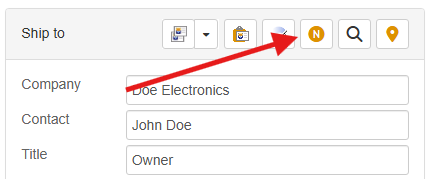
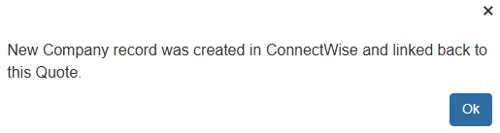
If you use QuoteWerks, Autotask, ConnectWise, HubSpot CRM, KaseyaBMS, MS CRM, Pipedrive, salesforce.com, SugarCRM or Zoho CRM as your CRM/contact database and enter customer contact information manually under the Sold to / Ship to tab, you can use the  icon to create that contact's company record inside your CRM:
Keep in mind that for this feature to be enabled:
- The Sold to section can't already be populated with a contact you retrieved from your CRM
- The Company and Contact fields must both be populated
There's also an Access Right called CannotCreateCRMContact you can set if you don't want specific users to be able to use this feature.
Verifying US Addresses
Clicking the  icon will allow you to verify and standardize the address using the US Postal Service database. When an address is verified, it is logged in the document transaction log.
NOTE: You can show or hide this button on the Sales tax tab of the Real-Time setup with the option "Show/Display USA address verification". This option is useful if you live in a country besides the USA, but still ship and do business with customers in the USA and wish to benefit from USA address verification.
TIP: On the Misc -> General(more) tab of the Users Preferences window there is a "Address Verification Mode" option with the choices of "Manual" and "Auto Verify USA Address on Address selection".
IMPORTANT: The Pinnacle Edition of QuoteWerks is required to use this feature.
Profile Field
The Profile drop-down box under Sold to allows you to select the price profile to associate with this contact for this quote. This customer profile is used by QuoteWerks to determine the appropriate customer-based pricing for the customer. Some of the pricing methods that QuoteWerks supports, such as customer-based price levels and customer/product-based pricing use this profile field. When products have been set up to use these pricing methods or when products are added to the quote, the customer profile listed here will affect the pricing.
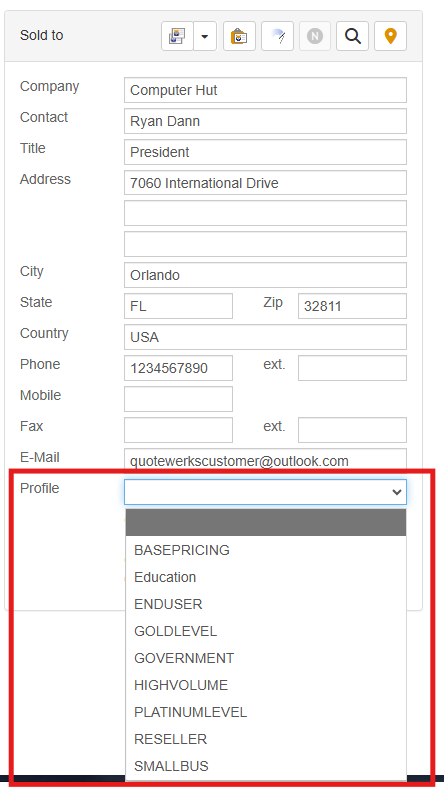
You can configure QuoteWerks to automatically pull the customer profile from a field in your contact manager using our DataLink feature. With DataLink, you can store the customer profile with the customer record in your contact manager, ensuring the correct customer profile will be used every time you quote this customer.
To set up DataLink, select the Contacts -> Setup Contact Manager menu, select your CRM, then click DataLink Setup.