
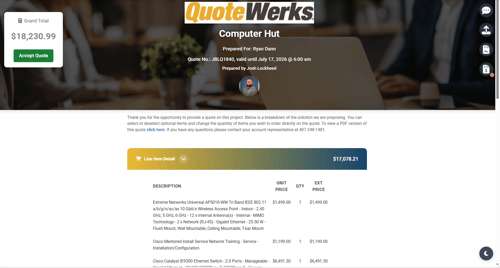
NorthStar templates are templates that can be selected within QuoteValet that govern how QuoteValet pages are displayed to internal users and customers. These templates are assigned by default on all new implementations of QuoteWerks, but can still be leveraged by users that are not on the latest version or build. This article explains how to assign NorthStar templates to be used by QuoteValet and the different options users have when leveraging them. Pictured below is an example of what the Customer Facing NorthStar template looks like.
This article contains the following sections:
Setting Up NorthStar Templates
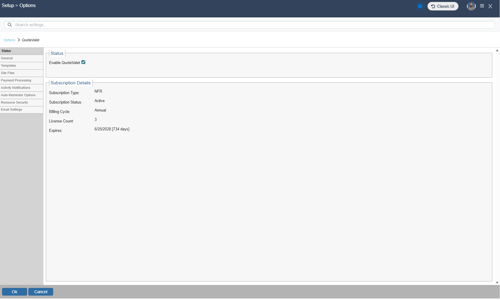
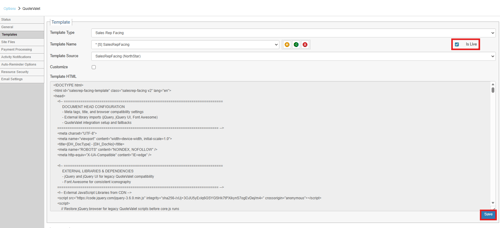
1. To set the NorthStar templates to be used by QuoteValet start by navigating to the QuoteValet setup page. This is done by navigating to Setup -> Options -> QuoteValet.
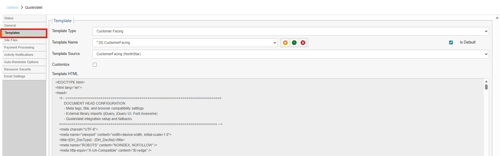
2. Click on the Templates Tab.
3. Using the Template Type drop down menu you will want to choose the different template types and apply the NorthStar template to them.
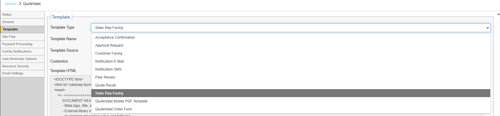
The template types that can use the NorthStar templates are as follows:
-
Acceptance Confirmation
-
Approval Request
-
Customer Facing
-
Notification E-Mail
-
Peer Review
-
Quote Recall
-
Sales Rep Facing
4. To assign the NorthStar templates you will want to select each of the template types above and choose the NorthStar Template Source option by using the Template Source drop down menu. For example, below we are selecting the Customer Facing NorthStar template so we have the Template Type set as Customer Facing and the Template Source as CustomerFacing (NorthStar).

The NorthStar Template Source for each Template Type are listed below:
| Template Type | NorthStar Template Source |
| Acceptance Confirmation | Acceptance (NorthStar) |
| Approval Request | Approval (NorthStar) |
| Customer Facing | CustomerFacing (NorthStar) |
| Notification E-Mail | NotificationEmail (NorthStar) |
| Peer Review | PeerReview (NorthStar) |
| Quote Recall | Recall (NorthStar) |
| Sales Rep Facing | SalesRepFacing (NorthStar) |
5. For each Template you will want to use the Template Source dropdown, select the Template Source as listed above and ensure "Is Live" is selected and click Save at the bottom right of the window. Following these steps will ensure you are using the NorthStar templates across all Template Types.
NorthStar Template Examples
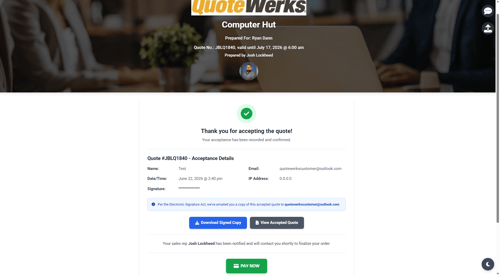
Acceptance Confirmation - this is the webpage a customer will see when a quote is accepted.
Approval Request - this is the e-mail internal users receive when approval is requested.
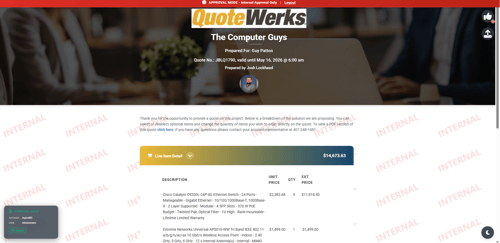
Customer Facing - this is the webpage customers receive a link to when you send then a quote via QuoteValet.
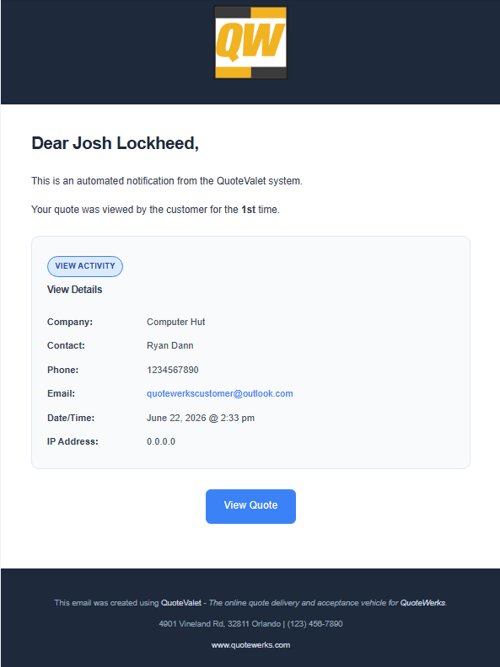
Notification E-Mail - this is the e-mail QuoteWerks sales reps receive when a QuoteValet notification is triggered, like when a customer first views a quote.
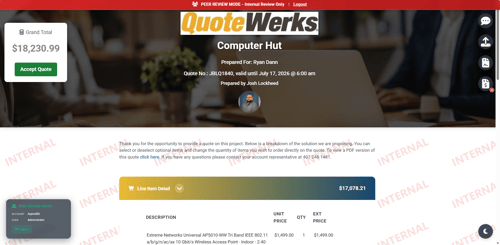
Peer Review - this is the webpage QuoteWerks users receive a link to when a QuoteValet Peer Review is requested.
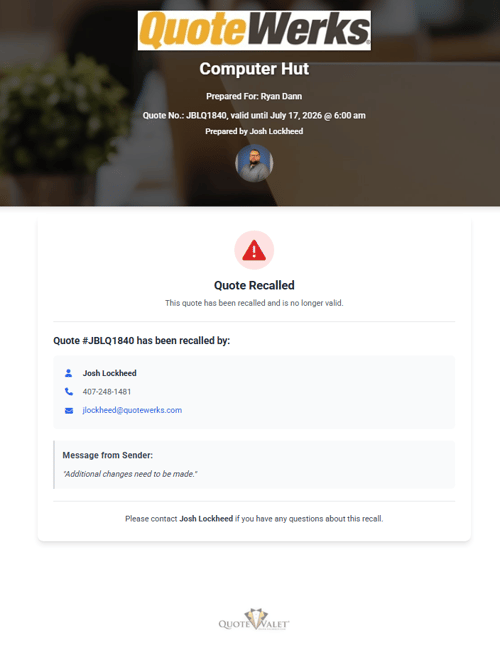
Quote Recall - this is the webpage a customer will see if a quote has been recalled from QuoteValet.
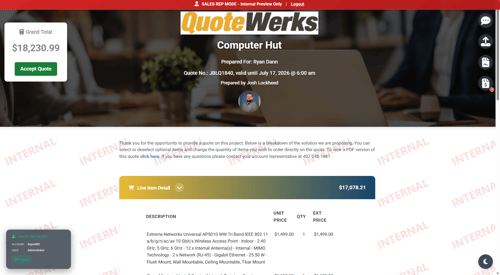
Sales Rep Facing - this is the webpage QuoteWerks users will see when they are reviewing a quote.
Enabling the Active Quotes List
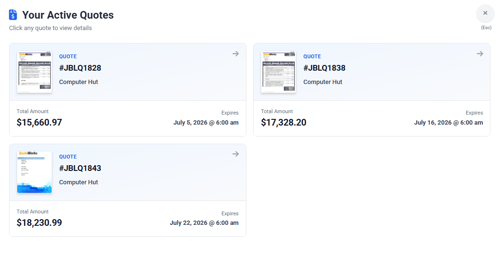
On the Customer Facing NorthStar page there is an option to enable a link that will bring customers to a list of other active QuoteValet quotes associated with the Sold to contact on the quote being viewed. 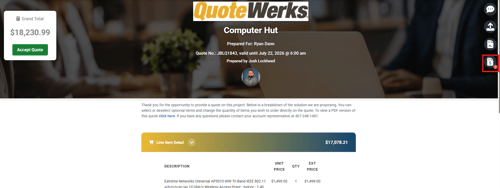
Clicking on the icon highlighted above will open the customer's Active Quotes List as seen below.
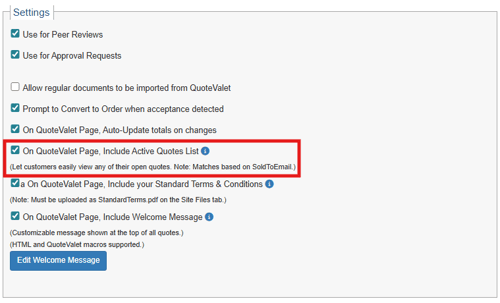
To enable this option, navigate to the General Tab of the QuoteValet Setup page and under Settings, ensure that "On QuoteValet Page, Include Active Quotes List" is selected.
Uploading Terms and Conditions
The NorthStar templates allow you to upload a terms and condition file that is visible as a link from the Customer Facing and Order Confirmation pages.
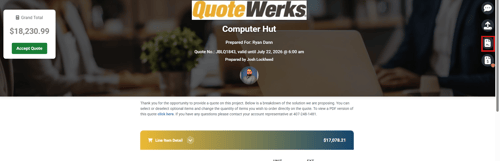
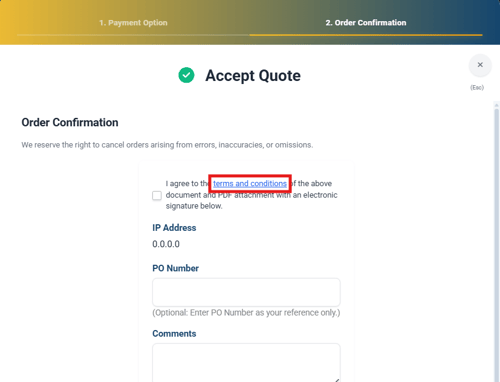
To make this option visible and upload a file that will be displayed when the customer clicks either of the links pictured above there are 2 steps:
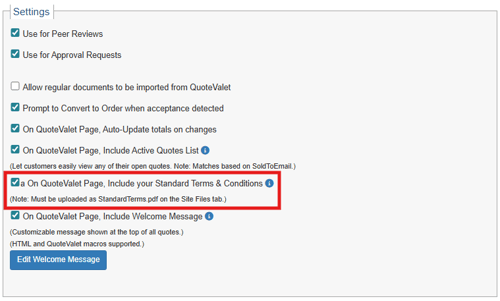
1. To enable this option, navigate to the General Tab of the QuoteValet Setup page and under Settings, ensure that "On QuoteValet Page, Include your Standard Terms & Conditions" is selected.
2. Navigate to the Site Files Tab of the QuoteValet Setup page and under Manage Site Files (Advanced), upload your terms and conditions as a PDF file with the name StandardTerms.pdf. This is done using the New  button.
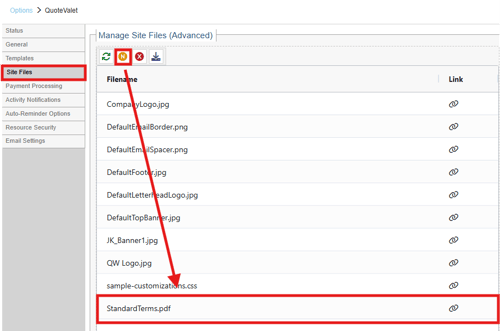
With the file uploaded with the appropriate name, the customer can view it by clicking on the icon on the Customer Facing page or the terms and conditions link on the Order Confirmation page.
Setting a Welcome Message
There is a welcome message displayed at the top of the Customer Facing page that can be edited from the General Tab of the QuoteValet Setup page. The sample welcome message is highlighted below.
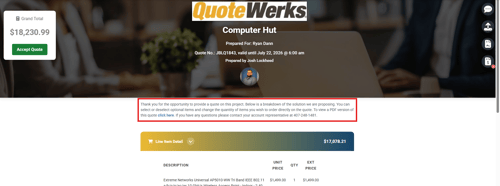
To enable this option, navigate to the General Tab of the QuoteValet Setup page and under Settings, ensure that "On QuoteValet Page, Include Welcome Message" is selected. To edit the welcome message click on Edit Welcome Message.
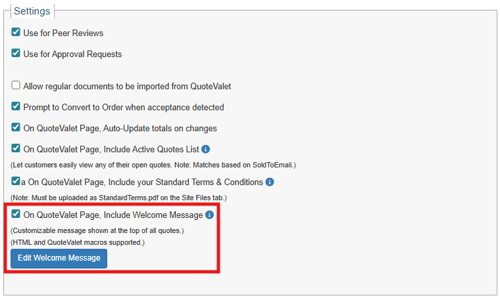
Clicking on Edit Welcome Message opens a rich text editor where you can customize your welcome message.
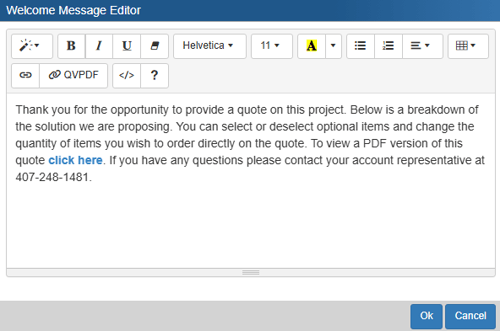
NOTE: You can include a "click here" link that will bring your customer to the PDF version of your quote by clicking on the  button.