
The Data Manager is an advanced feature that allows users to import data into and export data out of QuoteWerks databases. It also allows for the mass updating of prices across a QuoteWerks native product data source.
The Data Manager is access by navigating to Setup -> Data Manager from the navigation panel.
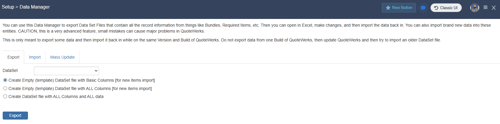
IMPORTANT: This is a very advanced feature! Small mistakes can cause major problems in QuoteWerks.
Using the Data Manager you can import and export a variety of data sets including:
-
Bundles
-
Configurations
-
Contacts
-
Exchange Rates
-
Lookup Items
-
Optional Items
-
Pricing Profile Names
-
Pricing Profiles
-
Price Modifiers
-
Reports
-
Required Items
-
Substitute Items
-
Vendors
This advanced Export will save the DataSet in a CSV file format with the column headings. This enables you to easily open up this file in excel and make changes. Then you reverse the process and Import this file. No mapping is required. In addition exporting data, changing it in Excel, and then importing the changes, you can also just export out a formatted CSV file that only has the column headings in it so that you can enter new data to import.
The use of the Data Manager is restricted to users with MasterRights and also the Misc Access Rights of "NonMasterRightsUser_CanExportFromDataManager", and "NonMasterRightsUser_CanImportFromDataManager".
The Data Manager can also be used to quickly do a price increase of Fixed Price items in QuoteWerks Native product sources.
Export using the Data Manager
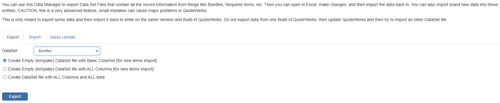
To export data using the Data Manager navigate to the Export tab. Choose the data set you would like to export and choose the appropriate option given what you are trying to accomplish:
Create Empty (template) DataSet file with Basic Columns (for new items import)
This option allows users to create a DataSet file that only contains the columns that are necessary for a basic minimum-required import. Users can then populate this DataSet file in Excel and import on the Import Tab.
Create Empty (template) DataSet file with ALL Columns (for new items import)
This option allows users to create a DataSet file that contains all columns relevant to the item being exported. Users can then populate this DataSet file in Excel to fully control its content.
Create DataSet file with ALL columns and ALL data
This option allows users to create a DataSet file that contains all columns relevant to the item being exported, as well as the data present within the item so it can be modified, transferred or backed up.
Import Using the Data Manager
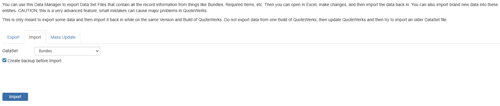
To import using the Data Manager navigate to the Import tab. Choose the DataSet you wish to import using the DataSet dropdown menu and click import. Choose the file you would like to import and click Open.
The option to backup your data before the Import is available (and highly recommended).
For a template to use when importing, first do an export using either Create Empty (template) DataSet file with Basic Columns or Create Empty (template) DataSet file with ALL Columns as described in the Export using the Data Manager section above.
Mass Update Using the Data Manager
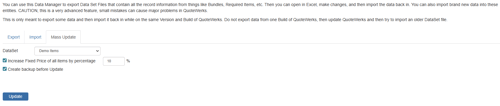
To perform a mass update using the Data Manager navigate to the Mass Update tab. You can use this to increase prices by a percentage for all Fixed Price products in a QuoteWerks Native product source. First choose the DataSet you would like to update, then select Increase Fixed Price of all items by percentage and input the percentage by which you would like to increase all items by. Click update to perform the mass update.