
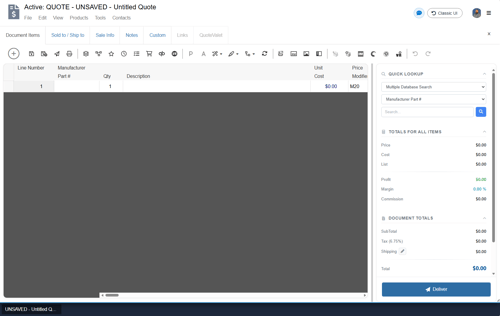
The Workspace shortcut on the navigation panel will bring the user to the currently open quote's Quote Workbook. The Quote Workbook contains the tabs for Document Items, Sold to/ Ship to, Sale Info, Notes, Custom, and QuoteValet.
Quote Workbook Tabs
The Quote Workbook opens anytime you open a document. This is also where you are returned anytime you click on Workspace. It contains different tabs across the top of the window that allow you to access different information connected to your open document.
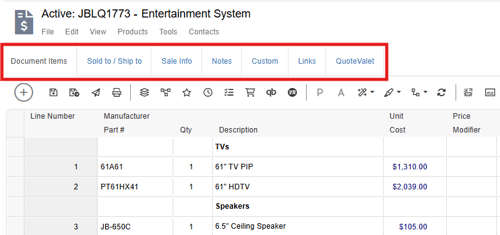
Detailed information on each of the tabs can be found by following the corresponding links below:
-
The document items tab is where you will spend most of your time working with a quote. This is where you will insert products, headings, and other objects that will help you build your quote.
-
The sold to/ship to tab is where you can add contacts to your document. There are three areas: sold to, ship to, and bill to.
-
The sale info tab stores additional information important to the overall quote. Here, you can specify a document status, shipping terms, payment terms, payment options, customer PO number, invoice date due, tax rate, alternate currency, sales rep, prepared-by user, and more.
-
The notes tab is where you can insert different types of text that can be either internal or printed on PDF outputs or QuoteValet quotes. This tab contains Introduction, Statement of Work, Closing, Internal Notes, Purchasing Notes, and Dynamic Notes.
-
Custom Tab
The custom tab allows you to store information related to the document that QuoteWerks does not already have pre-defined fields for. There are 24 CustomText, 5 CustomNumber, 2 CustomDate fields and 4 CustomMemo fields. -
The links tab is where you can add additional linked resources like word and PDF documents to be stored with a quote and only becomes selectable once a quote has been saved.
-
QuoteValet Tab
The QuoteValet tab is where you can get a quick overview of QuoteValet activity on a quote and manage a number of actions related to managing interactions with customers. The QuoteValet tab only becomes selectable once a quote has been uploaded to QuoteValet.
Grid Toolbar
In the Quote Workbook there is the Grid Toolbar across the top of the document grid that contains buttons to access different functions of the software.
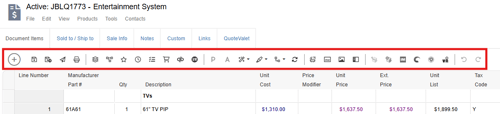
Details on each of these buttons are contained in the Grid Toolbar help article.
Workbook Tabs
At the bottom of the Workbook, users can toggle between up to 5 different documents. The current document being displayed will be highlighted and the other documents grayed out. Switching between documents is as easy as clicking on the document not already selected.
