
The QuoteWerks Dashboard contains three different dashboards for reporting on QuoteWerks document information. The first is the My Summary which includes a high-level overview of your total dollar amount and number of quotes and orders from the current month, last month, and two months ago. The second is the QuoteValet Dashboard which provides users with access to all information on documents delivered via QuoteValet. The third dashboard, Opportunities Dashboard, provides more detailed analysis and insight on QuoteWerks documents by sales rep. This information is sortable by date range and includes quota information, top selling items, and much more.
The QuoteWerks Dashboard is accessible by clicking on Dashboards from the Navigation Panel.
The Dashboard contains three separate dashboard views for users:
My Summary Dashboard
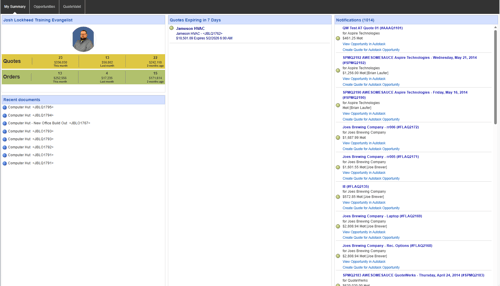
The QuoteWerks My Summary Dashboard gives a high-level overview of your total dollar amount and number of quotes and orders from the current month, last month, and two months ago. This is highly beneficial because it helps you step back and see the bigger picture, which can be difficult when dealing with detailed day-to-day tasks. By having this information in front of you, you can use your easy-to-read progress to help set milestones for yourself.
From the QuoteWerks Dashboard, you can also see quotes expiring within the next week and even handle Autotask and ConnectWise quote-request notifications.
The QuoteWerks Dashboard window will appear, displaying the My Summary Dashboard by default.
Quotes, Orders, and Recent Documents
The My Summary Dashboard includes a panel displaying all your quotes and orders for the current month, previous month, and two months ago. It shows both number and dollar amounts of quotes and orders.
Below the total quotes and orders, you can quickly view recent documents that have been accessed in QuoteWerks. To open any of these, simply click the appropriate hyperlinked document name
Expiring Quotes
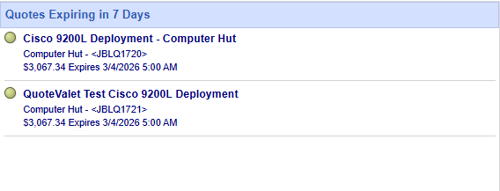
The My Summary Dashboard will also display all the quotes that will be expiring within the next seven days, providing you with an instant view of documents that need attention in the immediate future.
Clicking the hyperlinked document name will open the document in QuoteWerks.
Notifications (Available only with Autotask and ConnectWise Integration)
See QuoteWerks Dashboard Notifications for Autotask or QuoteWerks Dashboard Notifications for ConnectWise, depending on your CRM.
Opportunities Dashboard
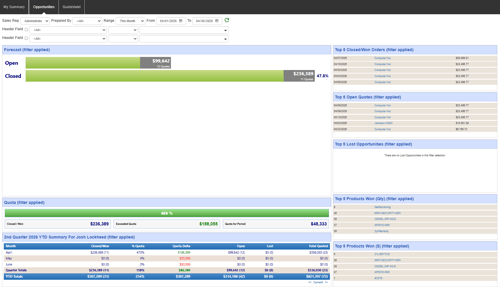
The Opportunities Dashboard displays real-time sales data from the active and closed quotes in QuoteWerks. This dashboard provides sales reps and management with insight into the QuoteWerks documents including top selling products, various stages of quotes, quarterly progress, quota achievement and more. Additionally, users will be able to automatically track opportunities instantly and accurately as the data that is used to create opportunities in a CRM system, is based on the quote in QuoteWerks.
Using the Sales Rep, Prepared By, Range, and Header Fields, users can see (with proper security settings) another users opportunities in QuoteWerks or their own. You can use the Header fields to filter down into specific document information such as expiration dates, deposit amounts, margins, and many more.
The Dashboard will also remember the previously selected filters.
Forecast for Selected Period
The Forecast for Selected Period will display the number of quotes with a status such as open, lost, and closed/won for the selected user or group and date range. The open quotes will consist of quotes created during the date range and that have not been converted to an order or set as lost. The closed quotes are quotes that have been converted to an order in QuoteWerks during the set date range. Date ranges are limited based on the security settings per user on the Access tab. The Date Range settings are customizable on a per user basis and can be located near the bottom of the Access rights list. The dashboard shares rights settings from QuoteValetInsight.
Users will also only be able to view their quotes unless their Document rights allow them to view other users or groups quotes in QuoteWerks.
Quota for Selected Period
The Quota for Selected Period will display the Closed/Won quotes dollar value for the selected period, the Exceeded Quota amount (if over quota)/ Quota Remaining (if under quota) for the selected range, and the total quota for the period. It will also display a status bar in a percent of the quota amount you have reached or exceeded.
Quarter Summary for Sales Rep
At the bottom left corner of the screen users can see a quarterly summary of their quotes and orders. This summary will display the number and dollar value of the closed/won quotes, the percent of the quota reached, the quota delta (if over the delta the dollar amount over will be in green, if under the delta the dollar amount will be in red), how many open documents remain, how many documents were converted to Lost, and the total number of quotes.
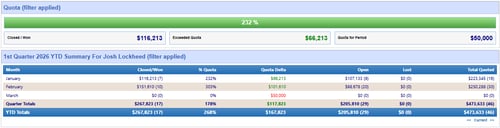
TIP: The Quota is set on a per user basis in the Sales Tab of User Maintenance. This can be modified by the QuoteWerks Administrator or any user with Master Rights
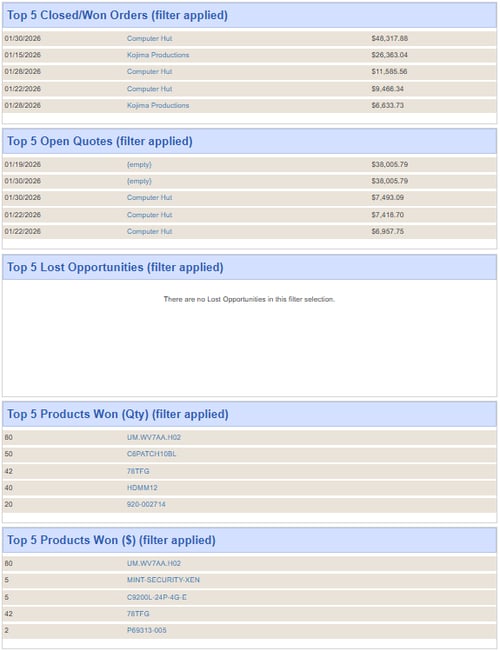
Top 5 Closed/Won in Period
This section, located in the top right of the Opportunities Dashboard, displays the top closed/won opportunities during the selected date range. These documents will be sorted from highest dollar value to lowest.
Top 5 Open Quotes in Period
This section, located on the right-hand side of the Opportunities Dashboard, displays the top 5 quotes open during the selected date range. These documents have not been accepted by the customer (converted to an order) or been set as lost (converted to Lost).
Top 5 Lost Opportunities in Period
This section, located on the right-hand side of the Opportunities Dashboard, displays the top 5 opportunities during the selected date range that were converted to Lost. This means the customer did not accept or move forward with these quotes.
Top 5 Products Won (Qty) in Period
This section, located on the right-hand side of the Opportunities Dashboard, displays the top 5 items sold during the period by quantity. It will display the quantity of the items sold during the selected date range.
Top 5 Products Won ($) in Period
This section, located on the bottom right-hand side of the Opportunities Dashboard, displays the top 5 items sold during the period by dollar amount. This will list the most expensive items purchased by customers for the selected date range.
QuoteValet Dashboard
Information on the QuoteValet Dashboard can be found in the QuoteValet Dashboard help file.