
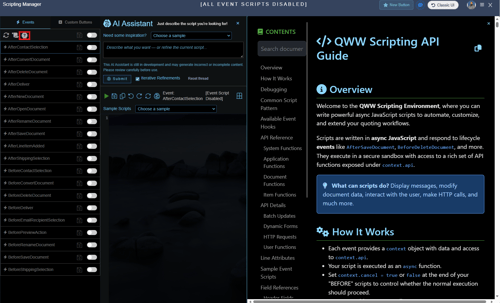
Scripting in QuoteWerks can be used to extend functionality based on system events. The QuoteWerks Scripting Environment is where you can write powerful async JavaScript scripts to automate, customize, and extend your quoting workflows. The Scripting Manager is used to build and execute scripts in QuoteWerks and can be accessed via the navigation panel. Once in the Scripting Manager there are a few sections that you can use to build, test, and implement your scripts.
To access the Scripting Manager navigate to Setup -> Scripting Manager.
For extensive documentation on how scripting works, available event hooks, syntax and much more please navigate to the Scripting Manager and click on the  icon. This will open the QWW Scripting API Guide on the right hand side of the window.
This article contains the following sections:
Global Controls
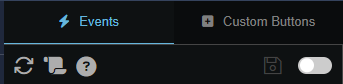
 Reload Everything - hitting this button will reload the Scripting Manager.
 Show/Hide Scripting Logs - hitting this button will toggle the scripting logs, which if enabled will display at the bottom of the Scripting Manager
 Show/Hide Documentation – hitting this button will toggle the Scripting Manager documentation. This displays scripting documentation which includes basic syntax, available event hooks, functions, calls, HTTP requests, sample event scripts, and field references. This documentation can be used to provide guidance while you are building your own scripts.
 Save all changes - hitting this button will save any changes made across all event hooks.
 Toggle Event Firing for All Scripts - hitting this toggle will turn event firing for all scripts on or off.
Event Triggers
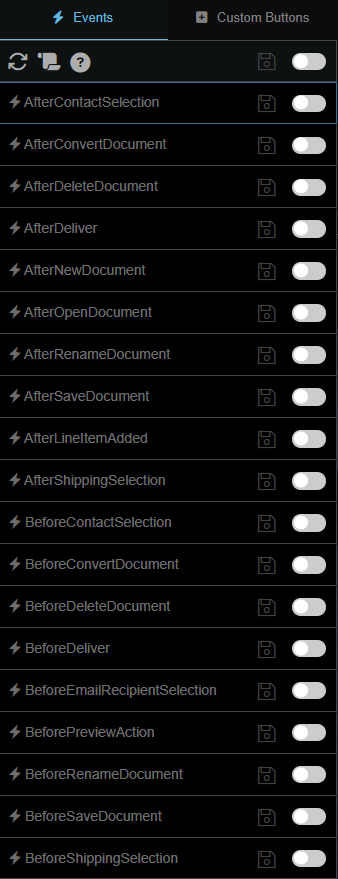
On the left of the window is a full list of Event Hooks that can be enabled to trigger an event. To enable an Event Hook use the toggle button to turn it on and the save button to save a configured script.
Code Editor
The code editor can be used to build and test scripts. It will show at the top of the editor what event the script is assigned to, whether it has been saved, and whether it is enabled.


Code Editor Controls
 This button will run the selected script.
 This button will save the event script.
 This button discards changes and reloads the script.
 This button copies the script to the clipboard.
 These buttons allow you to undo and redo changes made to the script.
 This button will reload the event script from the server.
 This button toggles the AI Assistant.
AI Assistant
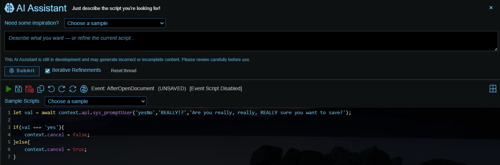
The AI Assistant can be accessed by clicking on the brain  icon while in the editor or while editing a script tied to a specific event hook. The AI assistant can assist you in writing scripts based on a prompt. Simply type your prompt into the AI assistant and click AI Generate Script. The system will translate your prompt into the JavaScript code needed to accomplish the task and return it in the code editor. From here you can edit, save, or copy the script. You can toggle the AI assistant on or off at any time by clicking the brain icon.
How to use the AI Assistant
The AI assistant is available in the code editor and when an Event is selected. To open the AI Assistant click on the Brain icon. In the dropdown list next to ‘Need some inspiration?’ are sample prompts that can be used to generate specific scripts. If you would like to use the AI Assistant to write a script simply input your prompt (what you want the script to do) and hit ‘Submit.’ As AI processes the input, activity is logged in the Scripting Log which can be toggled on or off. The output will then be inserted into the code editor from which you can run, save, or edit the AI output.
Scripting Log
Clicking on  will open the scripting log at the bottom of the screen. This log will show the status of tasks within the scripting manager as well as when event hooks trigger a script to run.

Custom Buttons
With the Scripting Manager you can create custom buttons that will trigger a script to run independent of an Event Hook. You can create new custom button by clicking on Custom Buttons at the top left of the window.
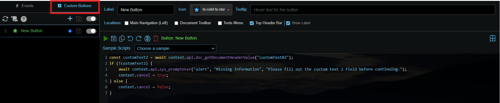
Custom Buttons bring the power of the QuoteWerks Web Scripting Manager directly into the user's workflow. Instead of waiting for a specific event, a Custom Button can run a script whenever the user chooses.
A button can inspect or update the current quote, visually flag items that need attention, ask the user for information, generate text with AI, connect to another service, or perform a company-specific process.
The QuoteWerks Web scripting environment can work with document and line-item data, display messages and forms, generate text with AI, make HTTP requests, refresh pricing, interact with QuoteWerks data, and more.
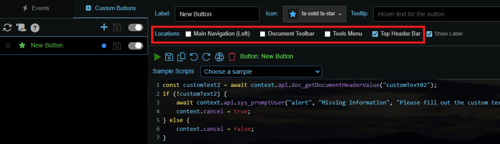
You can create a new custom button by clicking on the plus  icon. The new button will be listed below. You can give the button a label, choose an icon for the button, and assign a tooltip for when someone hovers over the button.

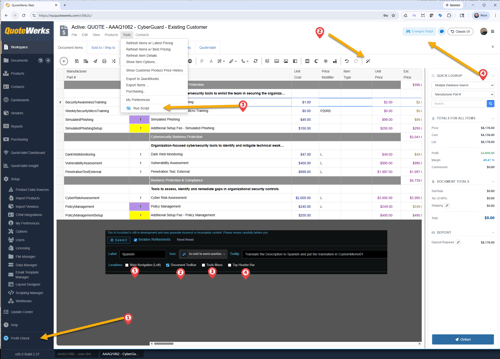
You can also choose where you would like the button to be located. You can choose from Main Navigation (Left), Document Toolbar, Tools Menu, or Top Header Bar.
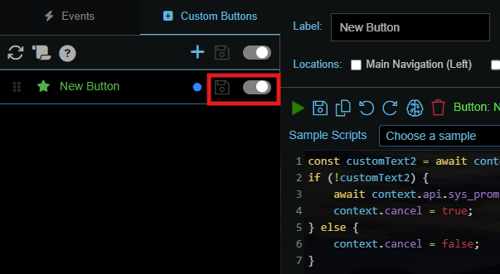
You can generate and test your script using the editor and toggle the button on or off on the left of the window.
Here is an example of a custom button added to the Top Header Bar:

What Types of Scripts are Good Candidates for a Custom Button
The best Custom Button ideas probably will not come from a standard feature list.
They will come from the small, repetitive steps your team already performs while building and reviewing quotes.
Ask yourself:
What does someone on our team regularly stop quoting to check, calculate, copy, translate, validate, look up, or clean up?
That process may be a good candidate for a Custom Button.
You might create a button to:
- spot check a quote and visually flag items outside an internal pricing guideline,
- validate information before a handoff,
- standardize descriptions or formatting,
- populate custom fields,
- refresh pricing,
- collect additional information from a salesperson,
- look up data from another system,
- prepare information for another workflow, or
- perform a company-specific quality check.
But not every process should become a button.
If something must happen every time, an Event Hook may be the better approach.
If a rule must be enforced, a built-in QuoteWerks control or approval mechanism may be the better solution.
Custom Buttons are most useful when the action should be available on demand.
Custom Button Example
Custom Buttons can also combine QuoteWerks data with AI.
Imagine a company that regularly creates quotes in English but sometimes needs product or service descriptions in another language.
The company could create two buttons:
-
Translate to Spanish
-
Translate to French
When the salesperson clicks one of the buttons, the script could:
- Read the Description from each applicable line item.
- Use QuoteWerks AI to translate the text.
- Place the translated version into
CustomMemo01.
The scripting environment can generate text with AI and can read and update line-item fields, making workflows like this possible.
The original Description remains untouched.
The translated version is stored separately and can be used by the appropriate customer-facing document layout.
This creates a practical multilingual workflow without requiring the salesperson to:
- copy descriptions into another translation tool,
- translate each item manually,
- paste the results back into the quote, or
- maintain separate product databases for each language.
For an English-language quote, the salesperson simply continues working normally.
For a Spanish-language customer, they click Translate to Spanish.
For a French-language customer, they click Translate to French.
Generating a Script: Example
1. Determine what you would like your script to do and whether you will be building your own script or using the AI Assistant to generate one for you.
2. Click on the Event Hook or Custom Button that you would like to trigger the script. In the example below we have chosen to have the script be triggered after contact selection.
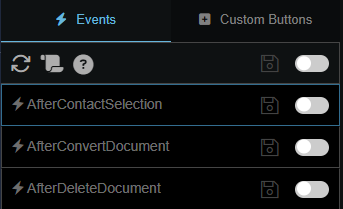
3. Write your script using JavaScript and the code editor or have the AI Assistant generate one for you. The script will be listed for you to see what JavaScript drives it.
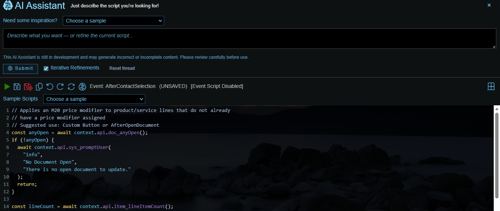
4. Once you have your script generated you can click the play  button to test your script. The script will run and will be logged in the scripting log.
5. Once you are happy with your script and are ready to have it go live, save it by clicking on the save icon and enable it by using the toggle  button. The selected Event Hook will display in green.
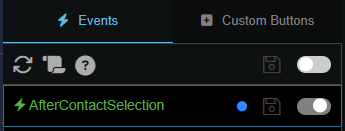
6. Make sure that global scripting is enabled by using the toggle button at the top of the window and click the save  button.
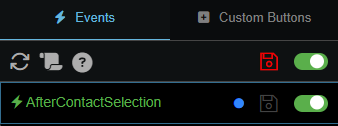
7. Now, when the Event Hook occurs or the custom button is selected, the configured script will run.