
The QuoteWerks Zapier integration enables users to push and pull information to and from QuoteWerks using custom Zaps. This integration allows users to connect to systems that are not generally supported by first-party integrations so long as the systems are apart of the Zapier ecosystem. Actions supported include but are not limited to the creation/updating of opportunities, pulling in contacts and products to be used on quotes, and pushing/pulling fields to and from your connected systems.
To setup an integration using Zapier navigate to Setup -> Options -> Zapier and API. If you scroll down you find two sections related to the Zapier integration: Zapier Integration Settings and Datalink.
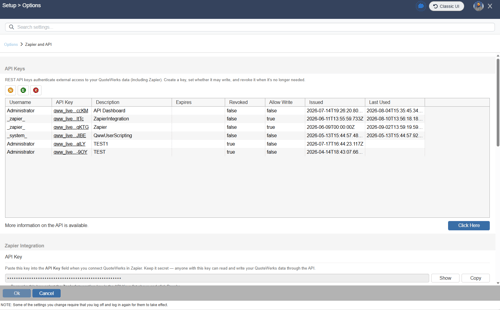
Zapier Integration Settings
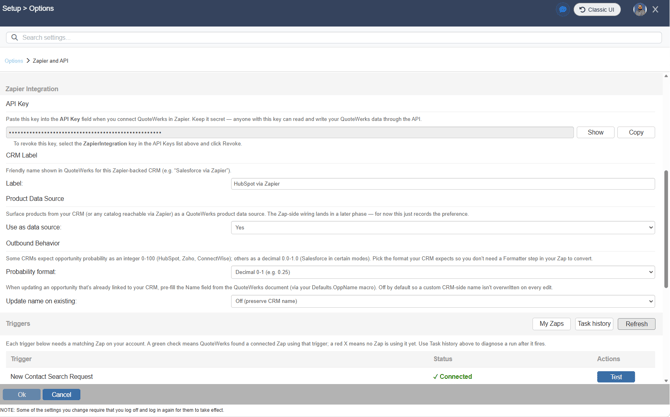
This page is where you will connect to your Zapier account, set configuration settings, and enable different parts of the integration. This article explains each of the options you have when configuring your connection to Zapier.
API Key
This is the API key that you will use to connect to the QuoteWerks app in Zapier. Here you can show the key, copy the key, or regenerate the key. You will want to keep the API key secure as anyone with this key can read and write your QuoteWerks data through the API.
CRM Label
This is the friendly name shown in QuoteWerks for the configured Zapier backed CRM. This label will show on the contact and product look up screens as well as the create/update opportunity window when the Zapier integration is enabled. Input the label you would like to use in the textbox to the right of the Label field.
Product Data Source
Setting "Use as data source" to Yes will make the connected system available in the list of product data sources so that you can pull products and services into quotes.
Outbound Behavior
-
Probability format – Some CRMs expect opportunity probability as an integer 0-100 while others expect a decimal 0.0-1.0. Here you can pick the format your CRM expects so you do not need a Formatter step in your Zap to convert the values.
-
Update Name on Existing – When updating an opportunity that is already linked to your CRM you can choose to pre-fill the Name field from the QuoteWerks document. This is off by default so the custom CRM-side name is not overwritten on every edit.
Triggers

Each Zapier event you configure needs a matching Zap on your account. A green check means that QuoteWerks has found a connected Zap for that event. A red X means the Zap has not been connected yet. When a Zap is connected you can click on the test button to test the connection to that Zap in Zapier.
-
My Zaps – clicking this button brings you to a list of your configured Zaps in Zapier.
-
Task history – clicking this button will show you the history of all Zap events that have been triggered by displaying the Zap history page in Zapier.
-
Refresh – clicking this button will refresh the connection statuses of your configured Zaps.
Events
-
New Contact Search Request – Use this option to be able to lookup and pull contacts into quotes from your connected CRM.
- New Opportunity Fetch Request – Use this option to enable pick lists on the create/update opportunity form in QuoteWerks.
- New Opportunity Form Initialize Request – Use this option to pre-fill the create/update opportunity window with values from your connected CRM.
-
New Opportunityortuinty Create/Update Request – Use this option to be able to create/update opportunities in your connected CRM.
Opportunity Defaults
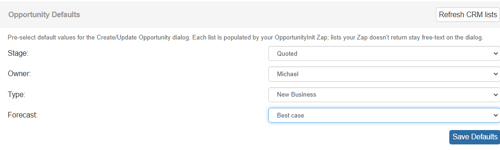
Here you can pre-select default values for the Create/Update Opportunity dialog. Each list is populated by your OpportunityInit Zap. Lists your Zap doesn't return stay free text on the dialog. Choose the default values by using the dropdown menu next to each field. You can use the "Refresh CRM list" button to refresh the values being pulled from your configured CRM. One you have selected your defaults click on the Save Defaults button.
Datalink Field Mapping
Datalink Field Mapping allows you to push and pull fields from your configured CRM that are not normally shared between the two systems. To configure a new datalink click on Datalink from the Zapier integration page. With the datalink window open click on the New button to create a new datalink.
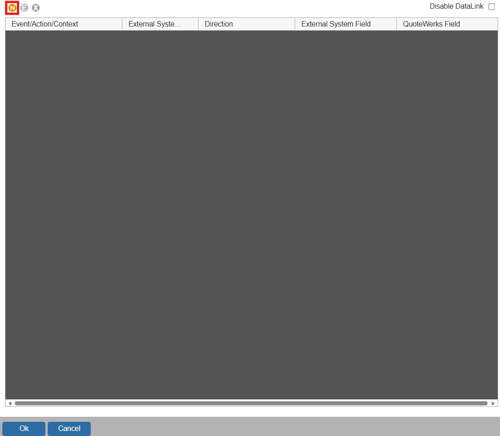
1. Choose the event/action/context which is the event in QuoteWerks you would like to trigger the datalink. This can be when you retrieve contact information, create/update an opportunity, or through other interactions with your CRM.
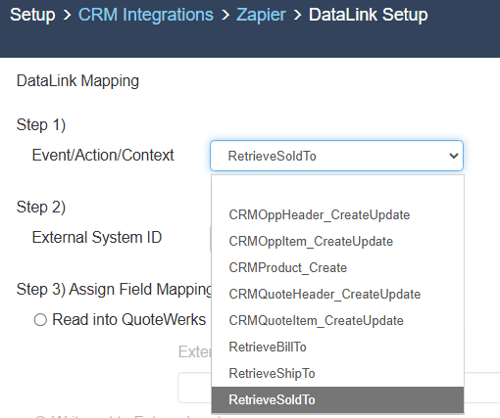
2. Once you have configured your event/action/context you will want to select Zapier as your External System ID.

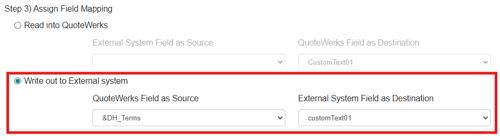
3. Select whether you want to read data into or write data out to your external system and note that your options here will be limited based on the event/action/context you have selected.
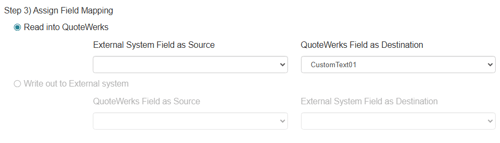
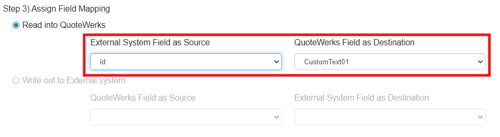
3a. In the case of reading data into QuoteWerks first select the field you would like to pull into QuoteWerks by setting your External System Field as Source, then select the field within QuoteWerks you would like to place this data by setting your QuoteWerks Field as Destination.
3b. In the case of writing data out to an external system, you will first select the QuoteWerks Field as Source, the External System Field as Destination.
4. With everything configured press OK to save your datalink. The new datalink will then be listed in your list of configured datalinks. When the Event/Action/Context occurs data will be written into the chosen field within QuoteWerks or in you external configured system.