
In QuoteWerks you can easily attach additional documentation to a quote like terms and conditions, SOWs, or information about your company. This can be done in a number of ways. How you accomplish this is dependent on whether the documentation you wish to attach is something you will use on a regular basis or specific to a singular quote.
If the documentation you wish to attach to a quote will be used on multiple quotes the best way to attach it to your quote is by using the Literature tab on the Deliver window.
If the documentation you wish to attach is a one off or specific to the quote that you are working on the best way to attach it to your quote is by using the Links tab on the Deliver window.
Literature Tab
For the documentation to be selectable on the Literature tab you need to add it to the literature folder using the File Manager. This is done by navigating to Setup -> File Manager. Once in the File Manager click on the Literature folder.
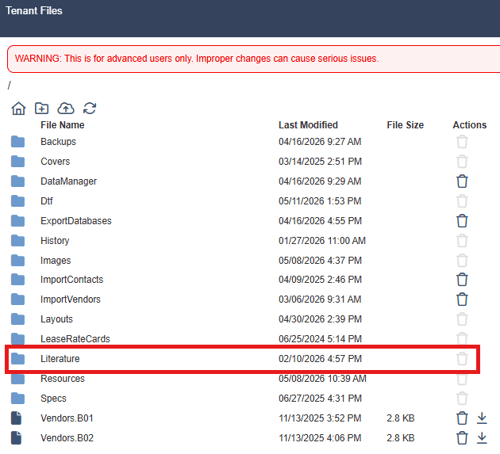
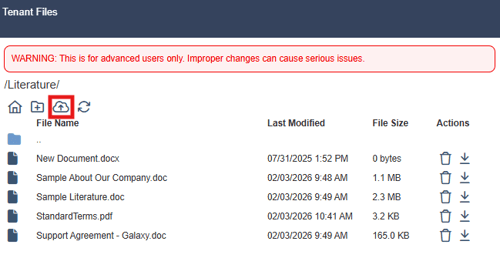
Once in the Literature folder click on the  cloud icon to upload your documentation.
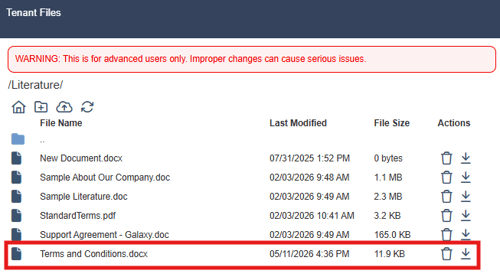
Navigate to the location of the document you would like to upload and click the Open button. The file will now appear in the File Manager.
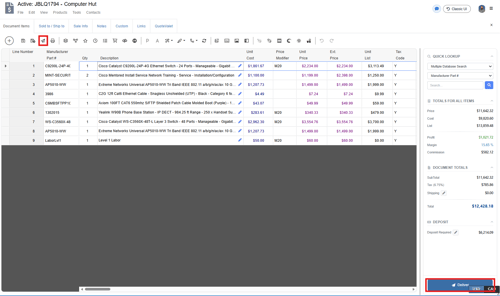
With your file in the Literature folder navigate to the Deliver window by clicking on the  Deliver icon or Deliver at the bottom right of the Quote Workbook.
This opens the Print, Share, Publish Deliver Document window. Click on the literature tab and you see your file listed.
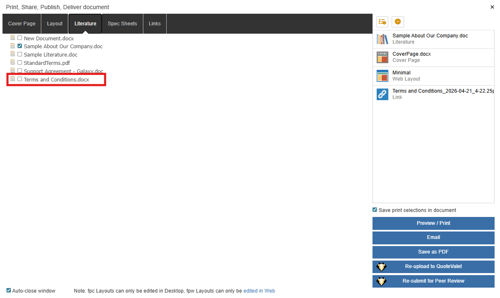
Click the checkbox next to the file you would like to add to your PDF output, and you will see it added to the selection panel on the right.
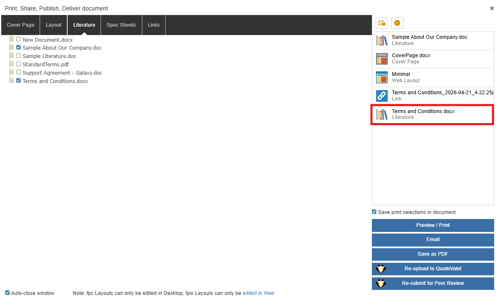
Now, when you Preview/Print, Email, or Save as PDF the document will be merged with the other documents listed on the selection panel into a single PDF document. The file will remain associated with this document and can added or removed from printed outputs from the Deliver window. The file will also remain in the Literature tab and can be associated with other documents in the future.
Links Tab
To add documentation from the Links tab navigate to the Links tab on the Quote Workbook.
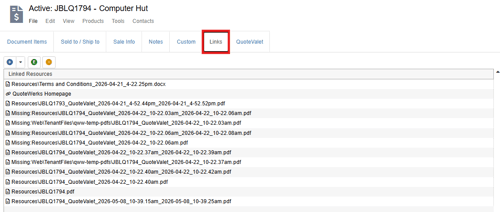
Click on the  plus button, navigate to the file you would like to attach and click Open. The file will be listed in the list of linked resources.
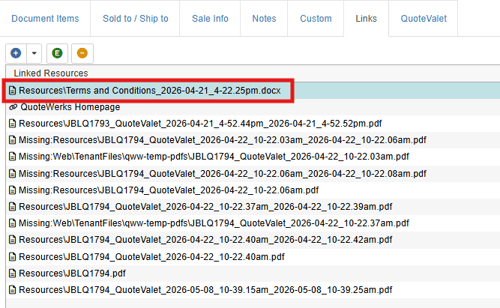
With the file linked as a linked resource on the Links tab navigate to the Deliver window by clicking on the  Deliver icon or Deliver at the bottom right of the Quote Workbook.
Click on the Links tab of the Deliver window. Your file will be listed here.
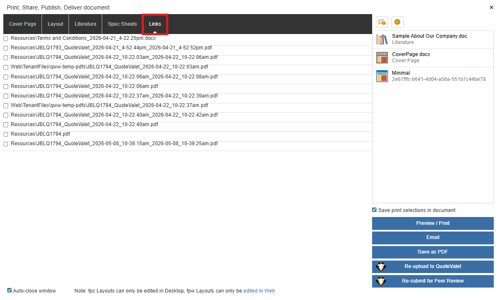
Select the checkbox next to the file you would like to attach and it will be added to the selection panel on the right side of the window.
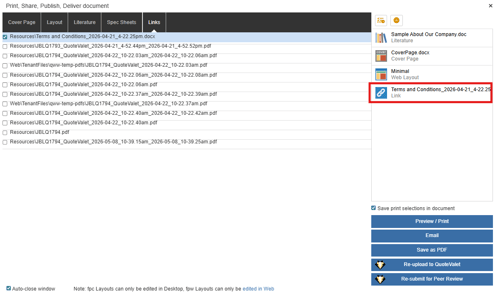
Now, when you Preview/Print, Email, or Save as PDF the document will be merged with the other documents listed on the selection panel into a single PDF document. The file will remain associated with this document and can added or removed from printed outputs from the Deliver window. If you want to associate the file with other quotes, you will need to follow the same process of adding it to the links tab and selecting it from the Deliver window.