
PDF quote layouts can be generated in QuoteWerks and delivered via email directly from the QuoteWerks system. This article reviews how to send a quote from QuoteWerks in a PDF format.
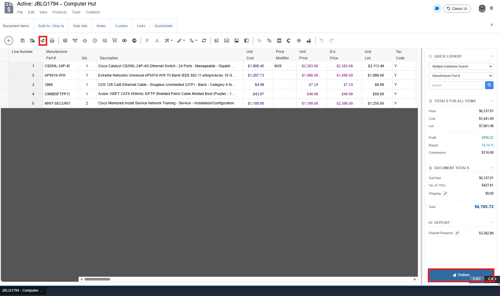
1. Once you have built your quote click on the deliver  icon from the grid toolbar or click on the Deliver button at the bottom right of the Quote Workbook Document Items tab as seen below.
2. This opens the Print, Share, Publish, Deliver Document window. Here you want to select you quote layout along with additional documentation you would like to include like cover pages, literature, spec sheets, or links. Once you have made your selections they will be listed in the document pane on the right of the window. You can change the order of the documents here by clicking and dragging them.
All documents included here will be merged into a single PDF output when you go to deliver the quote to the customer.
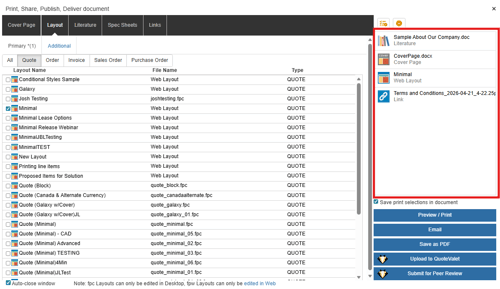
3. With your selections made you can now Preview/Print, Email, or save the document as a PDF by clicking on the buttons at the bottom right of the window. Preview/Print will open the document in your browser to review it before sending it to your customer. Save as PDF will save the document as a PDF linked resource which is accessible on the Links tab. Email will open the Send Email window where you can send the PDF to your client directly from within QuoteWerks, see below.
The email will be addressed to your Sold to contact and from the Sales rep on the quote. You can add additional recipients by free typing their email addresses into the To, Cc, or Bcc fields. Alternatively, you can click on the  icon to select contacts from the document.
IMPORTANT: In order to be able to send emails from QuoteWerks you must have your email configured from the Setup -> My Preferences -> Email tab window. For information on how to configure your email see the How Do I Send Emails from QuoteWerks? help article.
NOTE: For information on how to change the default email template used when delivering a quote via PDF please see the How Do I Change Quote Delivery Email Templates? help article.
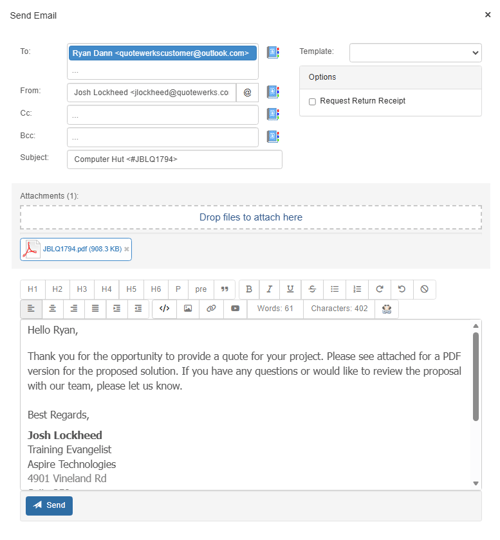
4. To send the email click on the [Send] button. Sent emails will be logged in the email clients sent mailbox that you have configured to send emails through QuoteWerks.