
QuoteWerks offers seamless integration with Ingram Micro, one of the world’s largest technology distributors, allowing you to streamline your ordering process directly from within the software. With Ingram Micro’s online ordering functionality, you can place orders, check product availability, and retrieve real-time pricing without ever leaving QuoteWerks.
Here’s how Ingram Micro Online Ordering works in QuoteWerks:
- Real-Time Pricing and Availability: When creating a quote or purchase order for a customer, you can pull live product pricing and stock information directly from Ingram Micro’s catalog. This ensures you are always quoting your customers with up-to-date pricing and product availability, which is crucial for accurate and timely sales quotes.
- Seamless Order Placement: Once you’ve finalized the quote, QuoteWerks allows you to easily submit the order to Ingram Micro. With just a few clicks, your order is sent directly to their system, eliminating the need for manual entry on their website or any external systems. This saves you time and reduces the risk of errors in the ordering process.
- Effortless Order Tracking: After placing the order with Ingram Micro, QuoteWerks can automatically track the status of the order for you, so you’ll always know when your products are shipping or if there are any delays. This level of integration helps you stay on top of your purchasing and ensures smooth order fulfillment.
- Simplified Order Updates: Any changes made to your order in QuoteWerks, such as adjusting quantities or adding new products, can be automatically updated in Ingram Micro’s system. This ensures that your orders remain accurate and up-to-date without needing to re-enter data manually.
By integrating with Ingram Micro, QuoteWerks significantly reduces the manual work involved in ordering products and helps ensure that you’re always working with the most accurate and current data. Whether you’re fulfilling customer orders, managing inventory, or tracking purchase history, Ingram Micro’s online ordering feature in QuoteWerks is designed to simplify your purchasing process, save you time, and improve your business efficiency.
Acquiring your Ingram Micro JSON Credentials
To setup your Ingram Micro JSON credentials, you need to create an app in the Ingram developer portal.
To sign up:
1. Open your web browser and go to https://developer.ingrammicro.com/user/login. If you do not have an account yet, click on the "Sign Up" link. If you do have an account skip to step 3.
2. Sign up for the new account using your Customer Number and your contact information. Once you sign up, click on the confirmation email to verify your account.
3. After your account has been setup and verified, login and click on the [Add App] button.
4. You'll see the "New App" window. Give your app the name of QuoteWerks or QuoteWerks Importer or something similar.
5. Under the "API Catalog" section, click and enable all of the options except Async Order Management v7. If you have your Ingram Micro Sales Rep's email, include that as well for faster approval.
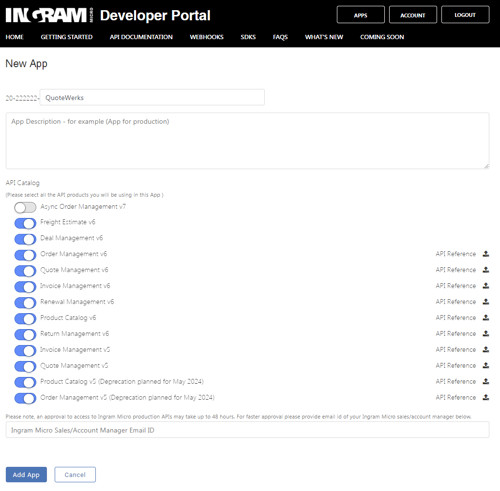
6. Click on the [Add App] button to save the changes.
IMPORTANT: Your new app starts off in a status of In Review until approved by Ingram Micro. Your credentials will not be active until you see the status changed to Approved.
7. After being created, you should see your new app in the list, click on it.
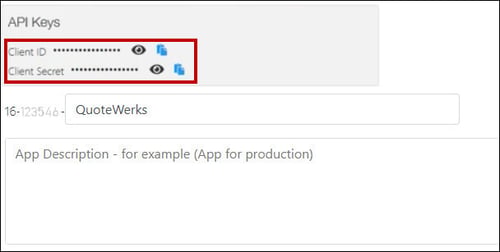
8. You'll be brought to the App information and at the top of the window you'll see the API keys box. Copy the Client ID and the Client Secret to a Word document or Notepad. You'll need these in a minute for QuoteWerks.
9. Open QuoteWerks and navigate to Setup -> Options -> Real-time Setup -> Ingram Micro.
10. Paste the Client ID, Client Secret, and add your Customer Number in the proper fields.
NOTE: Your customer number will be exactly like it is in the app setup, including a dash. You will get an error if you leave out the dash.

11. Click [Ok] to save the changes.
Map Ingram Micro Field to QuoteWerks Field
These options enable users to map the Ingram Micro Quote Number, Expiration Date, and the Line-Item Comments to a CustomText or CustomMemo fields in QuoteWerks. When mapped, the information in these fields from Ingram Micro will automatically be populated in the QuoteWerks quote.

Online Ordering Integration
On the Ingram Micro Online Ordering Options window (Setup -> Options -> Real-time Setup -> Ingram Micro) you can specify the default settings for the Online Ordering feature. These settings mostly control the defaults used when placing the order on the Ingram Micro Online Order Form described later.

Shipping Options
Ship Via
Here you can select your default shipping carrier. The available options will vary depending on your country. Users also have the option to select the Ingram Micro Default method or other.
Your Account #
If you would like Ingram Micro to provide your shipping carrier account # to your carrier for shipping rather than charging the shipping to your Ingram Micro account, you can specify your shipping carrier account # here.
Item Availability
Backorder
This option determines how backordered items are handled. You have several options to choose from:
-
You can choose to not allow back orders at all.
-
You can choose to allow backorders with multiple shipments – meaning that as each item becomes available it will be shipped separately.
-
You can choose to allow back orders but ship the complete order from multiple warehouses – meaning that none of the backordered items will ship until all the backordered items are available, and when they are available, all the items in the order will ship at the same time.
- You can choose to allow back orders but ship the complete order from a single warehouse – meaning that none of the backordered items will ship until all the backordered items are available and can all be shipped from a single warehouse.
Flooring Account
Enter in your flooring account number (if you have one) so this will be used in the Ingram Micro ordering.
Copy Reseller Address from ‘Our Location’
When this option is selected, the reseller information on the Reseller tab of the Ingram Micro Online Order form will be populated with the address from the Company tab of the Tools -> Options menu.
Place Order ‘On Hold’
When this option is set, the “Place Order ‘On Hold’ checkbox on the Ingram Micro Online Order form will be checked by default.
You are now ready to begin using the Online Ordering Module with Ingram Micro. You can access Online Ordering through the Purchasing button. See Ordering from Ingram Micro for next steps.