
The Links Tab has two sections. The first is the Linked Resources which displays document attachments such as PDFs, Excel sheets, Word documents, etc and are manually attached.
The other section is called Auto-Links in which contacts, opportunities, activities, and tickets are linked dynamically from the CRM/PSA selected in QuoteWerks.
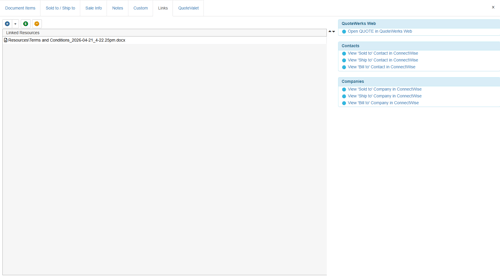
Linked Resources
To add a file to the Links tab, click the  button. You have two options to select from: Add a File Link or Add a Web Link. Resources added to the links tab will show up on the links tab of the Print, Share, Publish, Deliver document window and can be appended to PDF quotes.
Clicking Add a File Link will display a browse window, enabling you to navigate to the location of the file you want to link to the quote.
TIP: You can add multiple files to the Links tab by holding down the [Ctrl] key on your keyboard when adding items.
Clicking Add a Web Link will display the Enter web page link window, which provides a box to enter the Web-page URL you wish to link to the quote.
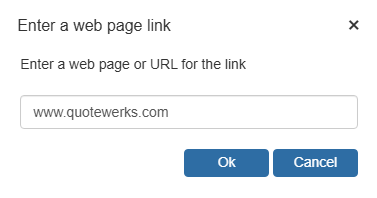
Once you click on the [Ok] button, you'll be prompted to enter a description for the Web link:
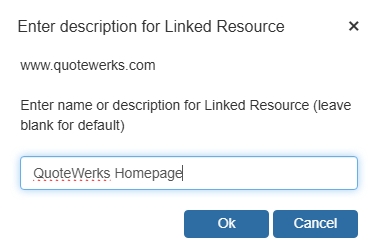
As an example, here you could rename a Web-page link to "UPS Tracking for the Flatscreen TV" rather than the raw package-tracking URL. You can also drag website addresses directly from your Web browser into the Linked Resources list. Double-clicking on the link will launch the Web page in your default browser.
NOTE: There is no limit to the amount of links that can be added to the Links tab, so you can add multiple documents, images, and links to website pages that contain information about each product you're selling, whether for internal reference or your customer's reference. You can also remove a link by right-clicking on the linked resource and clicking Remove Link.
Auto-Links
The Auto-Links window creates dynamically generated links from the CRM/PSA system and link to specific details from the QuoteWerks quote. These details include linking to the Sold to/Ship to/ Bill to contacts and/or companies, a link to the opportunity in the CRM/PSA, and more. This feature is available for Autotask, ConnectWise, HubSpot CRM, Kaseya BMS, MSCRM, Pipedrive, salesforce.com, and Zoho CRM.
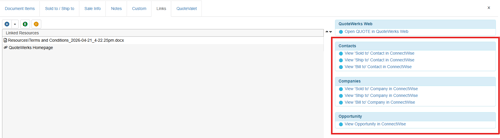
This functionality provides users with an easy way to view the contact(s) from the quote in the CRM/PSA system as well as the opportunity that was created based on this quote, and any activities (such as follow up calls) will be linked under the activities section. ConnectWise users will be able to view any tickets associated with this quote, the Sales Order, and an Agreement if QuoteWerks created them.