
This guide is used to train sales reps how to generally navigate QuoteWerks and to create, prepare, and deliver quotes to customers. It covers the most important topics for sales reps to know, but does not cover everything the software can do. For a more comprehensive overview of how to setup and use QuoteWerks please see the Accelerated Implementation Guide.
Logging in to QuoteWerks
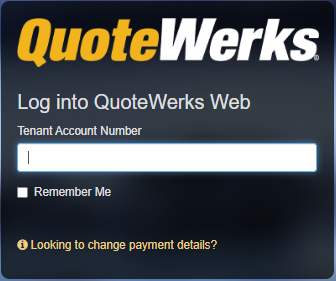
Log in to QuoteWerks by navigating to https:\\na.quotewerks.com
Input your tenant account number, username, and password and click Login. This brings you to the workspace. Here is where your open quotes will display. There is a left-hand navigation panel that has different options to navigate the software.
For more information see the Logging in to QuoteWerks Web help article.
Updating your User Preferences
The first thing you want to do is update your user preferences under My Preferences. This is done by clicking on your username at the top right of the window. On the personal tab input your information, upload a sales rep picture, and signature picture if you would like.
Next, navigate to the E-Mail tab. Input your return E-mail address, then select you email provider under the Send E-Mail using heading. Input your e-mail address again in the Authentication E-Mail Address box and click on Connect. Follow the prompts to connect your email to QuoteWerks.
Once done, return back to the E-mail tab and click on Test Email Settings. Click Yes to send a test email to your email account. Check your mailbox and ensure you receive it. This confirms that your email has been configured correctly.
Next, navigate to the Contact Manager tab and input your contact manager credentials if you will be using an integrated CRM. Once done, click Test to ensure the connection is successful. Click Save to save your preferences and to be brought back to the Workspace.
For more information see the My Preferences help article.
Building a Quote
To create a new quote, click on the New button under the File menu. This opens the Quote Workbook. The Quote Workbook is a window where you will build your quotes and has a number of different icons and options you can use to interact with your active quote.
For more information see the Quote Workbook help article.
Adding a Contact
Adding contacts to a quote is done from the Sold to/Ship to tab of the Quote Workbook. There are three areas: sold to, ship to, and bill to. The most important contact on this page is your sold to contact as this is the contact that will be addressed on quotes and the email provided for them is the email that will be used for sending QuoteValet links.
To add a new contact to any of the three fields click on the magnifying glass above the field you wish to add them to. This opens the Find Contact window that can query either the native QuoteWerks contact database or a connected database like those offered by your CRM, PSA, or accounting integration. To add a contact insert your search criteria and hit the magnifying glass, select the contact, and next to Use For click Sold to, Ship to, Bill to, or All. This will insert the selected contact into the corresponding fields on the Sold to/Ship to tab.
For more information see the Sold to/Ship to Tab help article.
Adding Products and Services
Adding products and services to your quote is done by clicking on the Products icon on the standard toolbar. This opens the Product Lookup Window. This is where you will search for, select, and add product to your quotes.
Working with Line Items
Once items have been added to a quote there are many options as to have to move and organize those items. This includes dragging and dropping items, copy and pasting them, and adding different line types to help organize your quote.
For more information on working with line items see the Working with Document Items help article.
Line Attributes
Line attributes are an important concept to understand when building a quote. Line attributes determine how the line items appear on quotes.
For information on line attributes see the Line Attributes help article.
Saving a Quote
Saving a quote is an important piece to building a quote as it commits all of your changes and will give you the opportunity to name your quote.
For more information on how to save a quote see the Saving Quotes help article.
If you are integrated with a CRM or PSA system saving a quote will also provide you with options to create assets in the configured system. This includes deals/opportunities, linked documents, follow-up activities, and more.
For information on CRM/PSA integrations and how they function see the CRM Integration or PSA Integration help article.
Delivering a Quote via PDF
Once you have built and saved your quote there are a number of delivery options. One is to deliver your quote via PDF. This can be done by either saving the quote to your local machine and attaching it to an email or emailing the PDF directly from QuoteWerks.
For information on how to save and send a quote via PDF see the Delivering a Quote as a PDF File help article.
Delivering a Quote via QuoteValet
If you have the Balanced or Pinnacle Edition of QuoteWerks you can also deliver quotes via QuoteValet. QuoteValet is QuoteWerks online delivery and acceptance vehicle through which you can send a link to an interactive webpage that contains your quote information.
For information on how to deliver a quote via QuoteValet see the Delivering a Quote Using QuoteValet help article.
Converting a Quote to an Order
An important step in a quote's life cycle is converting the quote to an order if it has been accepted by the customer. This can be triggered automatically when a customer accepts a quote on QuoteValet when you click on the QuoteValet tab or manually by navigating to File -> Convert to Order.
For information on converting a quote to an order see the Converting a Quote to an Order help article.
Converting a Quote to a Lost Sale
In the event that a customer decides not to move forward with a quote and an alternative to converting a quote to an order is converting a quote to a lost sale. This can be triggered manually by navigating to File -> Convert to Lost Sale.
For information on converting a quote to a lost sale see the Converting a Quote to a Lost Sale help article.